
Appearance
Using Joltuar with Google Meet (Chrome extension)
With the Joltuar Chrome extension installed and signed in to the same Joltuar account as the app, assist automatically uses the Meet meeting as the transcription source — no ports, no tokens, no pairing dialog to click through.
Installing the extension: add it from the Chrome Web Store — click Add to Chrome and confirm. It installs and auto-updates from the store. You can also open the store link straight from Settings → Chrome extension in the app.
This guide walks through signing in to the extension, starting assist for a Meet call (with or without the extension there), the status line in Account Settings, and how the Meet transcript reaches the app.
Steps
1. Sign in to the extension
Already signed in to the Joltuar web app in that browser? The extension picks up the same session automatically the first time it loads — nothing to click. Otherwise, open the extension's popup and sign in with the same Joltuar account and workspace as the app. That is the only "connect" step: the app finds the extension by account, not by pairing.
2. Starting assist for a Meet call
Join the Meet call in Chrome, then start assist as you normally would. If your signed-in Chrome extension is already in that meeting, the call captures through the extension automatically — nothing extra to click. The one exception: if you already started the in-call assist from the extension itself in that tab, the app won't start a second one and tells you so — stop the assist in the Meet tab first, then press Start in the app.
If no extension of your account is in a meeting yet (not installed, not signed in, or open on a different tab), assist starts right away on your computer's own system audio and microphone instead. There's no waiting window and nothing to confirm — the switch to local audio is immediate.
The one case with a short pause is an extension that IS in the meeting but doesn't respond in time — a crashed tab, a stale connection. The app waits a few seconds, then falls back to local audio on its own and shows a toast ("Chrome extension didn't respond — recording locally") so the call keeps running either way.
3. Check the connection in Settings
Account Settings shows the live extension status — idle, in a Meet meeting, or capturing — plus a title when one is known. There is nothing to toggle: the card is a status line and, if no extension is detected yet, a download button and install steps. The integration is always on.
4. Meet audio drives the assist
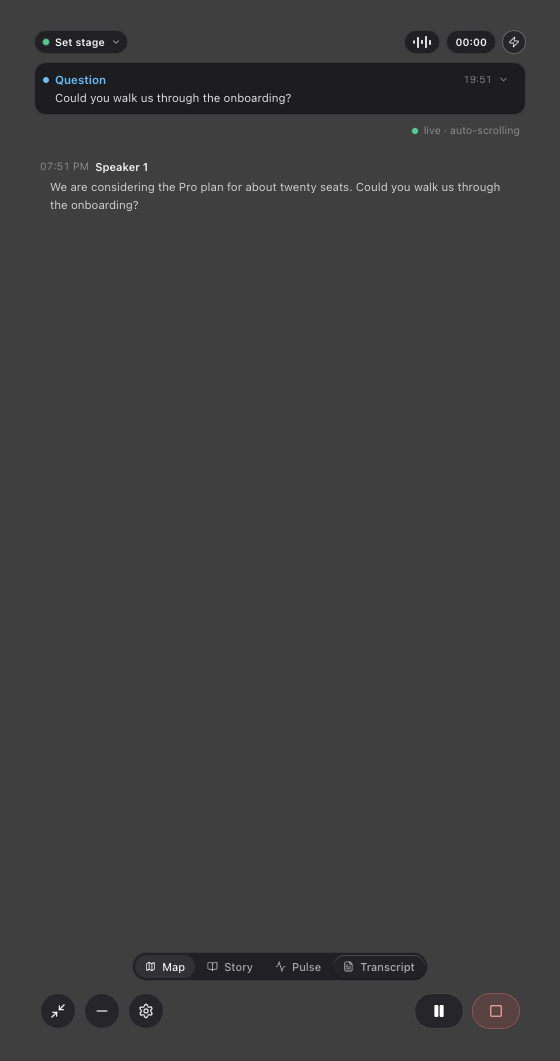
The assist window opens with the Meet meeting as its source — the extension's transcript reaches the app and is saved to the meeting as it goes, with hints and signals working as usual.