
Appearance
What's new
v0.34.3 — 2026-09-30
Share a folder of meetings
Folders in the sidebar can now be shared. Open a folder's ⋯ menu and choose Sharing settings: invite people by name or e-mail as Owner, Collaborator (adds meetings and manages people) or Viewer, and choose whether only those people, everyone in your workspace, or anyone with the link can open it. Everyone with access sees every meeting in the folder, including the ones you add later, and can ask the assistant about them. You can also share a folder with someone from another company who has a Joltuar account: they see it in their own sidebar, marked with where it came from, and can read the summary and transcript of each meeting and play its recording — never your deal details or the assistant's hints. Existing folders stay private to the person who created them until they share them.
Connect Pipedrive to your workspace
A workspace owner or admin can now connect Pipedrive in Integrations. The assistant can then look up your deals, their fields and activities, and your pipelines — and, when you ask, add a note to a deal, create or update a follow-up task, or update a deal's fields. Every change is shown to you for confirmation before anything is written to Pipedrive. See Pipedrive integration.
Recordings play from the first second in the desktop app
Pressing play on a meeting's recording in the desktop app starts the audio right away — no more three seconds of silence followed by the player jumping back to 00:00. And when a meeting you rejoined is still being stitched together, the meeting screen now says so ("Stitching the recording's parts…") and switches the player to the full recording, with its full length, as soon as it is ready — no need to leave and reopen the meeting.
v0.34.2 — 2026-09-29
Chat: Auto mode, "Always allow" and no more autocorrect
Next to the model picker in the chat there is now an Auto / Manual switch. Manual (where every chat starts) asks you before each action that changes something, as before. Switch a chat to Auto and the assistant carries those actions out without asking, in that chat only.
The confirmation card has a third button, Always allow: the action runs and the assistant won't ask about that kind of action again. The actions you always allow are listed under the Auto / Manual switch, where you can take any of them back.
The chat box also stops autocorrecting and suggesting words as you type.
After-the-call transcripts with MAI Transcribe work on long calls
With MAI Transcribe chosen in Settings → Transcription, a call longer than five minutes could end with "The transcript couldn't be made" instead of a transcript. Those calls are now transcribed as expected. And when a transcript does fail and Try again fixes it, the failure notice no longer comes back the next time you open the meeting.
v0.34.1 — 2026-09-28
Choose when your calls are transcribed — live, or only after the call
Settings → Transcription (at the top of the page now, where Live assist used to be) lets you decide whether a call is transcribed while it runs. Live gives you the transcript during the call — turn on Pulse, Map and Story right below — while After the call only records the call and makes the transcript once it ends. Each mode has its own choice of engine: Deepgram, this computer or a Recall.ai notetaker bot during the call; the Joltuar server, Deepgram, MAI Transcribe, this computer or a Recall.ai bot after it. A call transcribed afterwards shows "Transcribing after the call" on its meeting page until the transcript arrives, and the summary follows on its own; while it runs, the floating window shrinks to a small capsule with the call's timer and Stop. First-run setup asks the same question, and your pick is saved to your account when you sign in.
MAI Transcribe for the transcript after the call
Under After the call there is a new engine, MAI Transcribe (Beta): Microsoft's MAI-Transcribe-2 on the Joltuar server, straight from the uploaded recording — nothing to download, and it works even with the app closed. It picks up your workspace's key terms and detects the call's language by itself. Serbian is the one conversation language it does not cover.
Names in the transcript, even when nothing is transcribed live
When the Joltuar Chrome extension is on the Google Meet or Teams call, Joltuar remembers who was speaking when — and the after-the-call transcript names the other side's voices from it, whichever engine makes it. A name you typed yourself, or one a live transcript already carried, always wins.
The meeting's own title, not a timestamp
A call recorded by the desktop app on a Google Meet the extension is watching takes that meeting's title and link — so it joins the event from your calendar instead of showing up under a timestamp — and keeps its list of participants.
Send a Recall.ai bot to the call you're on
When Joltuar sees you're in a Google Meet, Zoom or Teams call — the Chrome extension on the meeting tab, or a meeting in your calendar happening right now — the + Capture menu offers Send Recall.ai bot for that meeting. If your account records calls with the bot by default, the same menu has Live transcript without bot for the times you'd rather not have a bot in the room.
One meeting, even when you leave and come back
Leaving and rejoining a call — or pressing Capture again on a meeting you just finished — now keeps one meeting: the parts are stitched into one recording and one continuous transcript, the duration adds up, and the second part no longer replaces the first part's recording or transcript.
Copied chat answers paste cleanly into e-mails
The Copy button under an assistant answer now copies it the way it looks. Paste it into an e-mail and the bold text, lists and tables come along; paste it as plain text (⌘⇧V) and you get clean text with bullet points — no more ** or ~~ characters.
Fewer "usage limit" stops in the chat
When our AI provider is briefly overloaded, the chat now retries on its own instead of stopping with "usage limit".
v0.34.0 — 2026-09-25
Chrome extension: sign in instead of pairing
The desktop app no longer asks you to approve a pairing with the Chrome extension, and the extension toggle in Settings is gone. Install the extension and sign in to it with the same Joltuar account and workspace as the app — the two find each other on their own the next time the extension is in a Google Meet call. The extension's transcript now goes through Joltuar's servers rather than straight to the app, so the meeting keeps being saved even if the app restarts partway through the call.
v0.33.9 — 2026-09-25
The Assistant answers even the big questions
Questions that need a lot of digging — say, "compare my last five calls with ACME" — used to end with "The assistant used too many steps". The Assistant can now look much further before it replies, and if it still runs out of room it answers with everything it found so far and says what's missing, instead of showing an error. (#773)
Changes show up without reloading the app
Switching workspaces now refreshes everything the app keeps on screen: the sidebar, which features are available, your Live Assist settings, and the meeting types in the call panel. Changes made by the chat assistant (a new folder, a renamed meeting, a synced calendar, a renamed chat) and changes to your workspace's default settings appear right away too. A newly connected integration shows up in the chat's @ menu as soon as you open the chat. (#777)
v0.33.8 — 2026-09-24
Chats about a meeting are kept
A question you ask in Ask about this meeting no longer disappears when you leave the meeting. Every conversation is saved as you go and shows up in your chat history, marked with the meeting it was about. In the meeting's chat panel, the new history icon lists Chats about this meeting — click one to pick up where you left off. Chat → History has a new Meetings tab that groups these conversations by meeting. (#769)
Chat history keeps what the assistant actually did
When you reopen a past conversation, you now see the same tool cards you saw while it was running — which meetings it searched, which records it created or changed, and which steps failed. The assistant also remembers those actions in the rest of the conversation, so it no longer loses track of what it has already done, and it will only say something was saved when it really saved it. (#771)
v0.33.7 — 2026-09-23
Meeting bot: speaker names survive the end of the call
When the Joltuar meeting bot sat in your call, the transcript you saw right after the meeting — and the one a colleague opened from a share link — could disagree: the desktop showed the participants' real names, the shared page showed Speaker 1 and Speaker 2. The desktop app was quietly re-transcribing the bot's recording after the call, and that pass could not know who was who. A bot meeting is no longer re-transcribed automatically — the bot already names every participant from the meeting's own guest list, and those names now stay. If you ever ask for Rebuild transcript on such a meeting yourself, the names are carried over to the rebuilt transcript too. (#717)
v0.33.6 — 2026-09-23
Fewer false "Meeting detected" pop-ups
On Windows, Joltuar used to announce a meeting whenever anything opened your microphone — voice typing, a recording tool, a voice-effects app — even with no call in sight. It now only reacts to the apps calls actually happen in: your browser (Google Meet, web Zoom or Teams) and meeting apps such as Zoom, Microsoft Teams, Slack, Discord, Webex, Skype or WhatsApp. And once you have seen the pop-up for a call, it no longer comes back every couple of minutes while that call goes on (on Windows and macOS alike): a new one appears only after your microphone has been free for a few minutes. (#744)
Download the transcript and summary as PDF again
Download → PDF after a meeting works again, for both the transcript and the summary, in the desktop app and in the browser. Polish characters and Cyrillic come out correctly, and the speaker-name and timestamp switches apply to the PDF the same way they do to the other formats. People you share a meeting with can now download the PDF too. (#745)
The end of a long summary no longer hides under the player
On the meeting page, the last lines of a long summary could slip under the floating bar at the bottom — especially with Ask about this meeting open. The page now always leaves enough room to scroll the text above the bar, however tall it gets. And selecting text down to the bottom of the column no longer copies the player's clock and speed along with it. (#746)
Approving an action in chat no longer breaks the conversation
When the assistant asked you to approve an action — deleting a meeting, writing a note or a task to your CRM — clicking Allow once could replace the whole chat with "Something went wrong", and the same conversation crashed again every time you reopened it. Approving now simply runs the action and the answer continues below it, and conversations that were affected open normally again. (#751)
v0.33.5 — 2026-09-23
The meeting bot's video now sits next to the transcript
When a meeting has a video recording from the meeting bot, the player now sits at the top of the transcript column instead of above the summary tabs, and it is the only set of playback controls on the page: the audio bar at the bottom disappears while the video is showing. Click a timestamp in the transcript to jump the video there, and the line being spoken is highlighted as the video plays. Fold the video away and the familiar audio player comes back. (#700)
The assist panel no longer vanishes when you open Chat mid-call
Opening Chat, Files or a Deal in the main window while a call was running used to make the floating assist panel disappear — and the call itself kept going in the background, so "Start live assist" answered that a session was already running and there was no way to stop it short of quitting Joltuar. The panel now stays put through every screen change; the call, its transcript and its hints continue exactly where they were.
The microphone survives a headset dropping out
Every call on the desktop app now starts by waking your audio hardware and checking that the microphone actually delivers sound — so a headset that fell asleep, or a microphone permission that was quietly denied, is caught before the call instead of producing an empty recording. If your microphone drops out mid-call (AirPods back in the case, a Bluetooth glitch), Joltuar switches to your Mac's default microphone within a few seconds and tells you with a small notice, instead of recording silence on your side. Your microphone level is also evened out, so a quiet laptop mic no longer comes through faint in the transcript. There is nothing to switch on — it just works.
Files: folder counts, expand in place, and a chat that can search inside your files
- A folder's file count now includes everything in its sub-folders — a folder holding ten pages in a nested folder says 10 files, both on the Files screen and in the Files in {Deal} panel, instead of 0.
- Clicking the arrow next to a folder on the Files screen shows its contents right there, without opening the folder first.
- The assistant and the Deal Agent can now search inside your uploaded
.md/.txtfiles (and the pages Joltuar researched for a Deal) by meaning and by keyword. Ask "what does the RFP say about SSO?" and it finds the passage even when the Deal holds many long documents. External connectors get the same thing as thesearch_filestool.
v0.33.4 — 2026-09-18
The chat, rebuilt — same conversation everywhere
Chat has been rebuilt on a new foundation, and the Assistant, the Deal Agent and the "Ask about this meeting" dock now behave as one and the same conversation.
Hover any answer and a small row of actions appears under it: copy it, ask for it again, or rate it with a thumb. Hover your own question and you can edit it in place — change the wording, hit Save, and the conversation continues from there; Cancel leaves it untouched. While Joltuar is writing, the send button turns into Stop.
What Joltuar did to answer you is now folded into the answer itself: the tool cards sit above the reply they produced instead of scattered around the thread, and steps of a workflow run stay grouped under their step. Scroll up through a long conversation and a "scroll to bottom" button appears to bring you back to the latest message. In the meeting dock, an empty conversation now offers suggested questions you can send with one click.
Those steps read as one short list now, not a stack of cards: a line saying how many tools ran (or, while Joltuar is working, what it is doing right now, with the seconds ticking), one row per step, and the full request and result one click away on any row. What an answer was based on sits under it as a single Sources pill — click it to see each meeting or Brain section it drew on, and click one to open it.
Live calls: fewer false alarms, faster start
A colleague or customer who joins a couple of minutes after you started the call is no longer reported as "customer silent". A call in which the other side went quiet while you kept talking is flagged during the call and marked as incompletely recorded, so support can tell a routing problem from a quiet customer. The transcription service connects faster at the start of a call, and a quiet stretch in which it kept answering but heard no words is no longer treated as a failure.
Diagnostic logs never carry your words
The diagnostic log the desktop app sends after a call (v0.33.3) is scrubbed on the device before it leaves — transcript fragments and signed links to recordings are removed — and deleting a meeting also deletes its logs.
v0.33.3 — 2026-09-17
Switching headphones or speakers mid-call no longer silences the customer's side
If your Mac switches audio output during a call — Bluetooth headphones reconnecting, a dock or monitor waking up — the desktop app now follows the change and keeps recording the customer's side of the conversation. Previously, a mid-call switch could leave the customer's channel silent for the rest of the call, with their words picked up on your own side of the transcript instead.
The desktop app now helps support diagnose problems without asking you for files
After each call — and whenever you send us feedback from the app — the desktop app sends its diagnostic log to Joltuar, so support can look into a capture or transcription problem without asking you to dig up and attach a file yourself. The log never includes anything you or the other person said; it only covers what the app itself was doing (starting/stopping a call, device changes, connection state). You can also send it yourself any time from Settings → Advanced → Logs, with a new Send logs to Joltuar button next to the existing "Open logs folder" one.
Your organization can turn the automatic sending off — the manual button still works either way — from Settings → Workspace → Product settings.
The Meet extension now warns you (and recovers) instead of listening in silence
If the Chrome extension stops receiving any audio during a Google Meet call — no one's voice, not even your own microphone — Joltuar now notices and switches to a backup way of capturing the meeting automatically, the same recovery it already used for a dead remote-audio decoder. Before this, a rare timing issue could leave the assist showing "Listening…" for the rest of the call with nothing actually being captured or transcribed.
v0.33.2 — 2026-09-15
Files: every file about a customer, in one place
A new Files entry in the sidebar gathers everything your organization has about a customer and about itself. Three tabs: All (whatever changed most recently, with where it lives), Company (curated libraries — Brain Documents, Templates, Reference Materials, plus your own) and Accounts (your customers). Inside an Account or a Library you browse nested folders, upload files by drag & drop or with the picker (PDF, Word, PowerPoint, Excel, Markdown, text, images, audio and video, up to 100 MB each), create folders, rename, move, download and delete. Meetings you assign to an Account show up automatically as read-only files — the recording, the transcript and the summary — under Recordings & Transcripts, and Brain sections appear under Brain Documents. Click a file to open it in a side panel you can resize or make full-screen, with up to four files open at once: PDFs with page navigation, zoom and search, images with zoom, playable audio and video, readable Markdown. Mark a file private and nobody else — not even an admin — will see it. At the bottom, Ask about these files sends your question to the assistant with the current Account, Library or folder as context; it tells you which files it could not read (for now only text and Markdown are readable). Files attached to the Brain now keep their original, so you can preview and download them again. Your existing meeting folders keep working exactly as before — a folder can now also live inside an Account, and one click turns a folder into a real Account.
v0.33.1 — 2026-09-15
Skills and Workflows moved next to Integrations
Skills and Workflows used to live inside Workspace settings, between Members and Billing. They now have their own places in the account menu — your avatar at the bottom of the sidebar — directly under Integrations. Nothing changed inside them; they are simply one click away instead of two, and no longer filed under settings your workspace owner manages.
v0.33.0 — 2026-09-15
Workflows, Skills and @-mentions in chat
You can now automate recurring sales work without leaving Joltuar. In the account menu (your avatar at the bottom of the sidebar) open Workflows, right under Integrations, and describe what should happen in plain language — for example "when a meeting is processed, find the deal in Pipedrive, write a three-bullet summary and post it to #deal-desk" — and use @ to point at the exact things involved: a Slack channel, a Pipedrive deal, a Brain stage or section, a meeting or folder, a teammate, or one of your Skills. Joltuar turns the description into a plan you can read before anything runs: each step is marked as a fixed action (a specific tool with fixed inputs) or an assistant step, and every step that reaches outside Joltuar (posting to Slack, updating your CRM) is called out up front. Approving the plan is what gives the workflow permission to act; runs then happen on a schedule (daily, weekly, monthly, quarterly), on an event (a meeting was processed, a calendar meeting is about to start or has ended, a Pipedrive deal moved stage, a Brain stage's exit criteria were met) or on demand. Every run lands as a conversation in your chat history under the new Workflows filter, where you can read what happened and ask follow-up questions.
The chat itself has a new home screen: a greeting that follows the time of day and, right under it, a composer with four quick actions — + Source (attach a Brain section or stage, a meeting or a folder), Tools (point the assistant at a connected tool: Slack, Pipedrive, HubSpot, NinjaPipe, Gong, Google Calendar or Outlook), Skills and Workflows. Picking a skill arms it for the message you are about to send (a small chip above the editor shows which one, and the placeholder reads "Run <skill> — add context or just send…"); picking a workflow runs it right there in the chat: each step shows up as it happens (with the tool it called and what came back, expandable), the composer stays locked with a "Working…" note until the run is done, and then you can keep asking about the results in the same conversation. A run's record in the history looks the same way — tool calls are cards you can open, not raw output. A microphone button dictates into the composer where the browser supports it. Tools show their own logos in the @ picker, and the picker's search box now sits at the bottom of the list, so the results never jump away from your cursor.
Skills sits just above Workflows in the same menu. A skill is a reusable set of instructions — a standup brief, a 1:1 prep, a proposal draft — that you call from chat by typing @ and picking the skill, or that a workflow can use as one of its steps. Skills and workflows can be private or shared with the whole organization; opening a skill shows who wrote it, a rendered preview of its instructions and a raw view you can edit in place, and both lists let you duplicate an item to start from a copy. The Workflows list shows, next to each workflow, when it fires ("Every Monday at 08:00", "When a meeting is processed"…) and lets you switch between your own workflows and everyone's. The chat composer itself learned @: mention a meeting, a Brain section or a Slack channel in any message and the assistant works with exactly that. Everything is also available to the AI assistant and to external MCP connectors as tools.
Speaker names stay in your transcript when the Mac records the call itself
On a Google Meet call, the desktop app sometimes has to record the meeting on its own — right from Start, or after taking the call over when the browser extension stopped hearing the other side. Until now that transcript only knew "Speaker 1" and "You". Now, as long as the Joltuar extension is open on the Meet tab, the desktop app keeps reading who is speaking from the meeting page and labels the other side's lines with their names — live in the assist panel, and in the saved meeting.
The extension also became more stubborn about hearing the other side in the first place: some Meet setups never let it decode the remote audio, which is what forced the takeover. It now attaches itself to every remote participant's audio the way Chrome expects, so on those setups the extension should keep delivering the customer's voice — and when it still can't, the report it leaves behind says exactly what that Meet did.
A short leftover clip can no longer wipe a call's transcript
When a call ends, Joltuar rebuilds the transcript from the cloud recording so the summary works from the cleanest text. If the meeting happened to carry a recording that only covers a sliver of the call — for example a few seconds captured by an earlier, aborted start on the same meeting link — that rebuild used to replace the whole live transcript with those few seconds, and the summary came out empty. Now a rebuild only runs when the recording actually covers the call. Otherwise the transcript you saw live stays exactly as it was, the summary is written from it, and the manual Rebuild button tells you why it did not run. On the desktop app, starting the assist on a meeting link also no longer attaches to a call that finished long ago on that same recurring link.
The desktop app no longer asks to pair the Chrome extension again for no reason
If your Chrome extension was already paired with the desktop app, a momentary hiccup in the browser could make it forget that for a second and ask you to approve the pairing again — usually right after a call ended. The extension now double-checks before asking, so the pairing prompt only appears when it really has never been paired or the pairing was revoked.
Calendar syncs the moment you connect it
Connecting Google Calendar or Outlook in Settings → Integrations now brings your meetings in right away — the list fills as soon as the connection completes, with no Sync now needed. Sync now stays there for when you want to force a refresh.
v0.32.1 — 2026-09-14
Pulse off means no Pulse tab
Turn Pulse cards off in Settings → Live assist and the live-assist panel no longer shows a Pulse tab at all — before, the tab stayed even though nothing would ever land in it, which looked like the setting being ignored. The same already held for the Map and Story boards: each tab is there only while its switch is on, and with all three off the panel is just the transcript. The manual hint shortcut still works with Pulse off; its card appears pinned at the top of whatever tab you are on.
Speaker names now survive a transcript rebuild
Rebuilding a transcript — automatically after a call, or by clicking Rebuild — used to start every speaker over as "Speaker 1", "Speaker 2" and so on, even when you had already renamed them, or a browser meeting had brought in real names from the meeting roster. It now carries those names over to the rebuilt transcript, matching each voice by when it spoke, so a rename you made sticks even through a later rebuild.
Rebuilt transcripts no longer get stuck on one repeated word
Occasionally, a rebuild produced a long run of the same word repeated dozens of times instead of the sentence that was actually spoken. Joltuar now recognizes that pattern and removes it, so a rebuilt transcript no longer shows that repeated-word artifact.
Downloads now ask where to save
On the desktop app, downloading a transcript, a summary or a call recording opens a Save dialog, so you choose the folder and the file name instead of hunting for the file afterwards. Cancel the dialog and nothing is saved; save it and the confirmation names the file you just created.
Stuck recording uploads: see why, retry, or download the audio
When the Chrome extension cannot upload a call recording, the toolbar icon shows a red ! — and now the popup tells you what happened. Under Start assist a line says how many recordings are waiting; click it (or open Advanced → Recordings waiting to upload) to see each one with the time it was recorded, its length and size, and the reason it did not go through in plain words: signed out, session expired, meeting not found on the server (deleted, or recorded under another account), network error, or a server error with its code. From there, Retry upload tries again right away, and Download audio saves the recording as a .webm file from the browser's local buffer — so a call is never lost even if the upload never recovers. The local copy stays until it uploads, and you can drop the downloaded file into the meeting's Upload audio if needed.
The whole transcript, over MCP
Asking Claude (or any other MCP client connected through Integrations → MCP) for a meeting's transcript used to stop part-way through a long call: the assistant got the first few minutes and a note that the rest was cut off, with no way to ask for more — so it reported that it could not fetch the whole transcript. From an external connector like Claude Desktop, a transcript now comes in pages the assistant reads one after another until it has the whole call, so a 90-minute meeting is fully available, not just its first few minutes. In the in-app assistant, the same fix means it keeps answering questions over the full call — asking what was said about pricing, or for a summary — instead of running into that same cut-off. Each line keeps its [mm:ss] stamp from the start of the call, so quotes still point at the right moment of the recording.
Large audio files upload reliably, even on slow Wi-Fi
Upload audio used to give up on bigger files over a weak connection: the bar crawled almost to the end, then the row failed with "Network error — check your connection", and files above about 50 MB never made it through. The upload now goes up in small pieces, and a piece that drops out on a flaky link is sent again on its own, so a long recording on home Wi-Fi lands instead of failing at the finish line. Nothing changes in how you use it: pick the file, watch the bar, get the transcript.
v0.32.0 — 2026-09-10
The live assist now starts quiet — you decide what it generates
Pulse, Map and Story are off by default. A call now begins with transcription only, and you turn on whatever you actually want under Settings → Live assist. Turning Pulse off does not take the assist away: the manual hint shortcut still works, so you can ask for a talking point whenever you want one — the assist just stops speaking up on its own.
Your workspace admin can set the defaults for everyone under Workspace settings, but these are defaults, not locks: whatever you choose for yourself always wins. The switches themselves are plain on/off — a default set by your admin simply shows up already on, and the moment you flip a switch the choice is yours to keep.
While a call runs, the Map board is built from what the customer says — your own side of the conversation is left out on purpose, so it cannot crowd the board with your talking points. The empty Map now says so, so a quick solo test into the microphone no longer looks like a broken board.
Transcription runs on your Mac by default, and picks its own model
New installs transcribe calls on your own machine instead of the cloud, and there is no model list to pick from any more — Joltuar looks at your Mac and chooses the largest Whisper model it can actually run well (Whisper Turbo on Apple Silicon with 8 GB or more, a smaller build otherwise). You can still switch to cloud transcription in Settings whenever you want.
If the model has not finished downloading yet, your call is not blocked: it runs in the cloud that one time while the download continues in the background.
On Windows, transcription keeps running in the cloud — the on-device engine has no GPU acceleration there.
Start where you click: the extension runs in the tab, the desktop app runs in the app
Starting the assist from the Joltuar Chrome extension — the popup, the button in the meeting tab, or auto-start when you join — now always opens the in-call overlay in that tab, even when the desktop app is running and paired. Starting from the desktop app still hands the capture to the extension when you are in a browser meeting, and records natively otherwise. Nothing moves between windows any more: the assist runs where you started it.
One meeting, one assist. If the desktop app is already assisting, the extension says so — Desktop app is running the assist — stop it there to start here — and its Start button waits. If the extension is already assisting in the tab, the desktop app tells you the same the other way round instead of starting a second recording.
The desktop app now tells you when the other side isn't being recorded — and can fix it itself
When the desktop app captures a Google Meet call through the Chrome extension, a rare browser issue could leave the other participant's audio silently uncaptured for the whole call — your own microphone kept recording, so nothing looked wrong. Joltuar now watches for this: the moment it happens, you get a clear notice on the Live screen, in the floating assist window, and as a one-time alert, and — on a Mac with the right permission already granted — the app automatically switches the call over to its own native audio capture, without starting a second recording or losing anything already said. (#547)
Joltuar tells you when a call's audio stops reaching it (macOS)
When Joltuar records a call itself — its own microphone plus the Mac's system audio, without the Chrome extension — a stream can quietly die mid-conversation: you unplug a USB headset, or the app playing the other side goes away. Until now the call simply kept running in silence and you found out afterwards.
The Live screen now shows a small amber note the moment it happens — "The customer's audio stopped reaching Joltuar" or "Your microphone stopped reaching Joltuar" — and it disappears by itself as soon as the stream comes back. If the System audio permission is missing altogether, it says that instead of guessing.
The same information also reaches Joltuar's own recording check, so a call whose other side went missing halfway through is now correctly reported as incomplete rather than as a quiet customer.
Auto-detect conversation language
Let the assistant figure out what language you're speaking. Pick Auto-detect in Settings → Conversation language, the Live toolbar, the prompter settings popover, or the pre-call meeting picker on an upcoming meeting. Joltuar will transcribe and write hints in the language it detects, and remember which language the conversation was in on the meeting.
Coverage: Cloud auto-detect currently covers English, Spanish, French, German, Italian, Dutch, Portuguese and Russian (managed Deepgram engine). For Polish, Czech, Hungarian, Romanian, Slovak, Serbian or Ukrainian on the cloud engine, pick the language explicitly. The on-device Whisper engine detects every supported language, so if you transcribe locally, all 15 languages work in auto mode.
The Assistant answers in the language you write in — every time
A short question in the chat could come back in the wrong language: the Assistant guessed the language of your message from its letters, and on a few words without any accents that guess was sometimes off — a Polish question once got a Romanian answer. The Assistant now only commits to a language when it is genuinely sure, and otherwise simply mirrors the language of your message, ignoring the language of the meetings and documents it reads on the way.
Uploaded recordings: the right language, and honest results
Uploading a file used to start every import in English, even when the call was in another language — a Polish recording landed on the wrong transcription language and came back empty. Upload audio now defaults to Auto-detect: Joltuar recognises the spoken language itself (14 of the 15 supported languages; only Serbian still has to be picked by hand) and sets the meeting's language from what it heard. Start recording offers Auto-detect too and otherwise starts with your workspace's conversation language. If you pin a language and the file comes back with no speech in it, Joltuar retries with language detection and fixes the meeting's language for you; when even that hears nothing, the row says "No speech detected" instead of "Ready", so you know to open the meeting and rebuild the transcript rather than trust a silent one. Dragging files onto the Upload audio area now works in the desktop app. An imported recording also plays back through the plain player instead of the two-channel mixer built for Joltuar's own calls, which could stay silent on long files.
Calendar changes now show up in seconds
Add a meeting to your calendar, move one to a different hour, or cancel it — and Coming up, the menu-bar agenda and your meeting list follow within seconds instead of the few minutes it used to take. Joltuar is now notified by Google Calendar and Outlook the moment something changes, rather than checking every so often, so the times you see are the times in your calendar. A meeting created shortly before it starts also gets its "starting soon" popup now, which it could previously miss.
Nothing to switch on: it works for every connected calendar, and reconnecting is not needed.
The Calendar button opens the actual event
The Calendar button on an upcoming meeting (expand the meeting, open the date chip) used to land on a Google error page instead of the event. Joltuar now keeps the calendar's own link to each synced event — Google or Outlook — and the button opens exactly that event; meetings synced before this change fall back to your calendar's main view until the next sync fills the link in.
Meeting end times now match your calendar
An hour-long event in Google Calendar or Outlook used to show up in Joltuar as a 30-minute one: Coming up listed it as "10:00 – 10:30" and the menu-bar countdown said the call was nearly over while you still had half of it ahead. Joltuar now keeps the real end time from your calendar, so the time range on Home, the countdown in the menu bar, the meeting popup and the moment a meeting moves from Coming up into your past meetings all follow the actual length of the event — including when you stretch or shorten it later in the calendar. Meetings synced before this update pick up their end time on the next calendar refresh.
The menu-bar agenda catches up the moment your Mac wakes up
If you put your Mac to sleep with a meeting coming up, the countdown next to the menu-bar icon used to freeze on what it said before the nap — "in 3m" long after the call had started. The menu-bar agenda, the Coming up list and the meeting reminders now refresh the instant the machine wakes, so what you see after opening the lid is the current state of your day.
A simpler, flatter sidebar
The section labels above the sidebar's navigation — Main, Brain, Analytics, System — are gone. The main list is now just Home, Chat and Team Meetings. Brain and Analytics moved into a small row of icons just above your account at the bottom of the sidebar; click Analytics there to open Signals or Playbook Adherence. Integrations, Account Settings and Workspace Settings (still with all its tabs — General, Meeting Summaries, Signal Reports, Playbook Adherence, Sharing, Members, Billing) have moved too: click your name at the bottom of the sidebar to find them, alongside Dark mode and Sign out.
A calmer, more compact Settings
Settings got a visual tune-up: tighter rows and cards, smaller controls, and plain-case section labels instead of the loud uppercase ones. Everything is where it was — Account, General, Meeting notifications, Language, Advanced — it just takes up less room, so more of the page fits on screen without scrolling. The same compact look carries through Workspace settings and Integrations.
Name a speaker right from the participant avatars
On a finished meeting, hover over a participant avatar at the top of the summary — when the call has no calendar guest list and the avatars stand for the voices heard in the transcript (like Speaker 2), the hover card now lets you say who that person is. Click the name, search or type a new one, and every line of that voice across the whole transcript is renamed — no more scrolling the transcript to find one of their lines first. It's the same picker you already know from the transcript, with suggestions from people you've met with before.
Meeting summaries use your renamed speakers
When you rename a speaker in the transcript (say, "Speaker 2" becomes "Marek Nowak"), regenerating the meeting summary now picks up the new name — the summary talks about the actual people in the call instead of generic labels. This applies to every summary generated after the rename, including the automatic one and Regenerate.
The recording is playable right after the call
When a call ended, the meeting opened with its transcript and summary but no audio player — the recording was still on its way to the cloud, and the screen never asked for it again, so you had to go Back and re-open the meeting to listen. The desktop app now shows the player the moment the recording lands, without leaving the meeting. The transcript's Rebuild button appears with it and becomes clickable once the automatic rebuild that runs after every call has finished.
A call that stops unexpectedly now lands on its meeting
When something went wrong mid-call — the microphone disappeared, transcription broke — the app used to bring back an old "Start session" view with a red notice, and the meeting you had just been on was nowhere to be seen. Now a call that stops unexpectedly ends the same way as one you stop yourself: you land on that meeting, with its recording and transcript, and a message on top says what happened.
The meeting chat opens wide, and "New chat" no longer throws the thread away
On a finished meeting, the expand button on the Ask about this meeting dock now stretches the chat over almost the whole page, with the thread filling the space, instead of adding four lines to a narrow card. The content column also leaves room under the floating dock, so the last lines of a summary are no longer hidden behind it. And starting a New chat in the dock archives the conversation you were having into your chat history, tagged with the meeting, instead of deleting it — open Chats to find it again.
On-device transcription no longer writes "Thank you." into silence
With on-device Whisper, a longer pause in a Polish or English conversation could end with a "Dziękuję." or "Thank you." in the transcript that nobody said — a known habit of the model when it is fed near-silence. Those phantom lines are now filtered out, while a real "thank you" spoken into the microphone still comes through.
The sidebar toggle sits on one line with the window buttons (macOS)
The collapse-sidebar icon in the window bar hung a few pixels below the close / minimize / full-screen dots. It is now on the same line.
Tell the Assistant when an answer misses
Every Assistant answer in chat now has a thumbs-up and a thumbs-down next to Copy. Use them freely — a thumbs-down opens a one-line "What went wrong?" box where you can say what you actually expected, and Skip (or Esc) leaves the rating without a note. The thumb stays lit when you reopen the conversation, and clicking the other one changes your mind rather than adding a second vote.
This is the fastest way to make the Assistant better at your work: ratings go straight to the team that writes its instructions, together with the few turns of the conversation around the answer you rated.
Your chat history is back after a restart
After the desktop app restarted — typically right after an update — the Chat entry in the sidebar and the Chats screen showed an empty history until you signed in again, so it looked as if earlier conversations had been deleted. Nothing was lost: the app asked for the list before it was ready to talk to the backend and never asked again. It now loads your conversations as soon as it starts, and refreshes the list every time you open Chat or Chats, so conversations you started in the web app show up on the desktop as well.
Windows: the customer's side of the call is now captured
On Windows, Joltuar now hears both sides of a call. The System audio row under Settings → Audio no longer says "Not available on this system": the customer's half is captured from your default output device (speakers or headset), and no permission is needed for it — if the row shows "Not confirmed", connect an output device and click Re-check. The Microphone row also remembers its state now: once you have enabled it, leaving Settings and coming back shows it as granted instead of asking you to enable it again, and if Windows' "Let desktop apps access your microphone" switch is off, the row says so and Open Settings takes you straight to it. Echo cancellation is not available on Windows yet, so use a headset for the cleanest transcript.
Setup asks for the two audio permissions on Windows too
First-run setup used to end at the transcription step on Windows, leaving the microphone and system audio to be discovered later — usually in the middle of the first call. It now has the same Permissions step macOS has, worded for Windows: the microphone row points you at the Settings → Privacy & security → Microphone switch ("Let desktop apps access your microphone") if it stays denied, and the system-audio row reminds you to connect a speaker or headset, because the customer's half is captured from your default output device and needs no permission at all. As on macOS, I'll do this later always lets you finish setup, so a machine with nothing plugged in yet is never stuck.
On-device transcription no longer stops mid-call after a long monologue
With on-device transcription (Whisper or Parakeet), a monologue longer than 15 seconds that happened to be cut exactly as the speaker paused could stop the transcription for the rest of the call — and until now that also meant the view above. The cut is handled correctly now, so the transcript keeps going.
See which version of Joltuar your teammates run
Workspace owners and admins now see, under each person in Settings → Workspace → Members, which builds they have been using — desktop app, web app or Chrome extension, the version number, the operating system and when it was last seen (for example Desktop app 0.31.3 · Windows · 2 hours ago). Handy when someone reports a problem and the first question is "are you on the latest version?". The same answer is available in chat: ask which version is Anna running? and the assistant reads it through the new list_member_clients tool. Members see nothing new — this line is shown only to owners and admins.
v0.31.5 — 2026-09-01
Recordings and live transcripts no longer double in length
If you started the assistant before any sound was playing on your Mac (or your audio device dropped out for a while mid-call), the rest of that call could be recorded at twice its real length — with a slowed-down, robotic-sounding playback, a shredded transcript and mixed-up speakers. The two audio streams (you and your customer) now re-synchronize the moment the missing one comes back, so the recording and the live transcription always match the real length of the call. As a safety net, the app also watches the microphone's real sample rate and corrects itself mid-call if the device's clock disagrees with what it declared (a thing some Bluetooth headsets do).
v0.31.4 — 2026-08-31
Search inside your conversations — and jump straight to the moment
The search box on Meetings now looks inside your calls, not just at their titles. Type three or more characters and an In conversations section appears above the list with the moments that match — by the exact words and by meaning, so "cost" finds a customer who said "this is expensive for us", in any of the 15 conversation languages. Every result shows the meeting, its date, the time in the call and the lines that matched. Click one and the meeting opens with the recording already at that second and the transcript scrolled to — and highlighting — that line. The date filter and the folder you are in narrow these results the same way they narrow the list.
Two smaller things came with it. In any meeting's transcript, the timestamps are now clickable — click one to play the recording from there — and the line currently playing is highlighted as the audio runs. And the Assistant searches the same way: ask it "when did anyone bring up SLA penalties?" and its answer cites meeting · mm:ss; the source chips under the answer open the meeting at that exact moment.
Calls become searchable a few moments after they end. Right after this update your past calls are indexed in the background, newest first — while that runs, the results say still indexing recent calls.
Brain stages now carry a full methodology, and Brain changes wait for your review
Open Brain → Stages and click any stage — Discovery, Demo, Proposal sent — and you'll find much more than the Map and Story you configured before. Each stage now has a Methodology card with two independent slots: a qualification framework (BANT, MEDDIC, MEDDPICC, CHAMP, SPICED, or your own) and a sales framework (FORGE, Challenger, SPIN, GAP Selling, Sandler, JOLT, SNAP). Pick one and Joltuar pre-fills the whole stage from it — the dimensions to qualify (with a gate threshold that becomes an exit criterion), entry and exit criteria, the required fields a rep must capture before the deal can move on, a pre-meeting checklist, and the Map topics and Story beats the live assistant follows during the call. Everything stays editable; switch frameworks later and Joltuar asks whether to delete what it generated or keep it as your own. Below the Map/Story you'll also find After the meeting: your own instructions for what the post-call summary should capture. Stages can be renamed, reordered by drag & drop, and a new Fields view lists every required field across all stages in one place.
The Brain also gets a Pending review queue, right at the top of its navigation. Changes to your Brain — an objection response worth adding, a discovery question to rephrase, a stage gate to raise — arrive there as proposals with the calls they're based on, and nothing changes until an owner or admin approves them. Open a proposal to see the edit inline in the section, tweak the wording if you like, then approve or reject; an approved change lands in the section's draft, so publishing stays a deliberate step. Proposals are filed by Joltuar's automations and connectors (the Chat and the MCP connector can file them today); the post-call analysis that fills the queue automatically is coming next.
Sending the meeting bot now always works — and tells you what happened
"Send bot" used to be a coin toss: sometimes the bot joined, sometimes nothing seemed to happen, and the only message was a generic "Could not send the bot". Three things were behind it, and all three are fixed.
- A bot that never "finished" was blocking the next one. When Joltuar missed the bot's end-of-call signal, the bot stayed "active" forever and quietly used up one of your workspace's bot slots — after two of those, every new send was refused. Joltuar now checks with the meeting-bot service itself, so a bot that has left the call is closed, its meeting is completed, its recording and transcript are fetched, and the slot is freed — on the next send, or within a minute in the background.
- One bot per meeting. Clicking "Send bot now" again for the same call — or a manual send racing the automatic invite — no longer dispatches a second bot. You get the bot that is already there, and the meeting's bot menu now shows Bot in meeting with a Remove bot action instead of a second "Send".
- "Invite bot automatically" does what it says. Ticking it on an upcoming meeting sends the bot two minutes before the scheduled start, from Joltuar's servers — your laptop can be closed.
You also get a straight answer when a send is refused: "Too many active bots", "Not enough credits", "the bot could not join this link", "you are signed out" — and when the bot went out but the live assist could not attach (for example because another call is already running), the message says exactly that, instead of pretending the bot was not sent. Add to live meeting accepts a pasted link without https://, rejects text that is not a link before creating anything, and no longer leaves an empty "live" meeting behind when the bot cannot be dispatched. A bot that recorded for a while and then dropped out of the call now still delivers its recording and transcript.
Your next meeting lives in the menu bar
The Joltuar icon in the macOS menu bar now shows your day at a glance. Next to the icon you see the meeting that is about to start — GTM Call • in 1h 43m — and, once it is running, how much of it is left: GTM Call • 57m left. It only ever speaks about today; when nothing is left, the icon stands alone.
Click the icon and the whole agenda unfolds: the next meeting with its countdown, then everything else Today, Tomorrow and Later, each with its time. Pick a meeting with a video link and Joltuar opens it for you; pick any other and the main window comes forward. Show Main Window and Quit are still there at the bottom. The list follows the calendars you have connected (Google or Outlook) and speaks your interface language. (#380)
"Coming up" keeps pace with your calendar
A meeting you add to Google Calendar or Outlook while Joltuar is running showed up in the menu-bar agenda and the pre-meeting pop-up first, and only reached the Coming up card on Home the next time you opened it — for a while the menu bar could say "in 12 minutes" over a Home page that said "No events". The card now refreshes on its own: every time Joltuar re-reads your calendar in the background, and whenever you come back to its window.
The language you pick for a planned meeting now sticks
Choosing a language on a planned meeting's page (the picker in the bottom bar) is now the language that meeting really runs in. Before, pressing Start in the desktop app quietly put the row back to your app-wide default and transcribed in that — so a call planned in Polish could end up recorded in English, with the picker still claiming otherwise. The desktop session now inherits the meeting's own language for transcription and hints, the language control on the live screen shows the language actually in use, and changing it mid-call updates the meeting too. The picker also lists only the languages a live call can be transcribed in (Japanese and Brazilian Portuguese remain available as post-call translation targets), and if saving the choice fails you get an error instead of silence.
Team Meetings: a lighter filter row, a host filter, and folder counts
The My meetings / Team meetings switch no longer sits in the page header as a two-button pill. It is now a single icon button in the filter row, next to search, date and Save as folder — click it and pick Team meetings or My meetings. The icon shows which one is active.
Next to it, in the Team view, there is a new Host button: pick one person and the list narrows to the calls they ran — handy when you review a single seller's week. The pick counts as a filter, so Save as folder keeps it. In the sidebar, every folder now shows how many meetings it holds, right after its name.
The Import from Calendar button above the list is gone. Connected calendars sync into Joltuar on their own (and Sync now is still in Settings → Integrations), so a second, manual way to pull the same events in was just clutter.
Settings, grouped one topic per card
Settings is shorter and easier to scan. Your profile is now a plain list of rows — profile picture, full name, what Joltuar should call you, e-mail, organization — instead of a wide form. Both language pickers sit together in one Language card: the interface language (which used to hide at the bottom of Account) and the conversation language. All the meeting pop-up switches — auto-start the assistant before a meeting, how many minutes ahead, scheduled meetings, detected meetings — share a single Meeting notifications card instead of three stacked ones, and starting Joltuar with your Mac has its own General row.
Everything you rarely touch stays folded away under Advanced, now split into labelled groups: Call recording, Transcription, Audio, Privacy and Logs (the "Open logs folder" button moved here from the transcription panel). The note under the recording switch also tells the truth now: after a call the recording is uploaded to your workspace (about 15 MB per hour) and kept for your organization's retention period — 30 days by default — with the local copy removed once the upload is confirmed. The web app gets the same layout, minus the desktop-only sections.
Choose how long call recordings are kept
An owner or admin can now decide, per workspace, how long Joltuar keeps the audio of recorded calls in the cloud: Workspace Settings → Sharing → Meeting Recordings → Keep recordings for, with a choice of 30, 60 or 90 days or the platform default (30 days). After that period the audio — and the meeting bot's video, where it was recorded — is deleted from Joltuar's storage automatically; transcripts, summaries and insights stay untouched, so the meeting page keeps working, only playback disappears.
The setting applies to calls recorded from now on: every recording is stamped with the window in force when it was saved, so shortening the period never removes something you recorded under a longer one. The same policy is reachable from the Assistant and any MCP connector (get_recording_retention / set_recording_retention), which also accept any other number of days — a value set that way shows up in the selector alongside the three presets.
The assistant shows its work in the right order
When you ask the Assistant something, it often looks things up before it answers — your meetings, your Brain, a chart it draws for you. Those cards now appear above the answer, in the order things actually happened, instead of below a paragraph that already summarizes them.
While it works, an animated indicator replaces the old spinner: a different motion for searching, for writing something down and for drawing a chart, and a "Thinking…" mark in the moments when nothing is on screen yet. The price of each answer is gone from the thread — usage is still counted against your workspace, you just don't get a bill printed under every reply.
The live-assist panel is a plain translucent surface now
The floating Assist window on the desktop, and the in-call panel in the Chrome extension, no longer blur what is behind them — the "frosted glass" look is gone. The panel is a simple tinted surface: you still set how see-through it is with Panel opacity in the panel's quick settings, and that opacity is the only thing shaping it. The stage picker, the settings popover and the Map questions panel got the same treatment. In the Chrome extension the panel's background is a little denser than before, so it stays readable over a busy meeting page now that nothing blurs the page behind it.
Paired with the Chrome extension: your name on your own lines, and no more transcript stalls
When the desktop app takes its transcript from the Chrome extension on a Google Meet call, two things are fixed. First, your own speech no longer shows up as an anonymous "Speaker 2" — the extension sometimes lost track of which audio track was your microphone if it had learned that before you pressed Start, and every line you said was then filed as an unnamed customer. It now always tells the app which track is you. On a 1:1 call the app also names the other person from the meeting's participant list instead of showing "Speaker 1" while it waits for Meet to confirm who is talking. Second, the live transcript no longer freezes for several seconds and then catches up in a burst: in-flight text is shown right away even while an earlier line is still being confirmed, and a brief hiccup on the link between the extension and the app reconnects in a fraction of a second instead of hunting for the app for up to 15 seconds.
Meet auto-start no longer switches itself off
With Auto-capture on, the Chrome extension started the live assist the moment you joined a Google Meet call — and then, a fraction of a second later, stopped it again. Meet quietly changes the page address right after you join, and the extension mistook that for you leaving the page. It now tells the two apart: the assist stays on for the whole call, and a real refresh of the tab still restarts it cleanly.
Windows: the app frames its own window, and updates work
The Windows preview now looks like the Mac app: the native title bar is gone and the close / minimize / maximize buttons sit at the top-left of the app's own bar, which you can drag (double-click it to maximize). Window edges still resize as before. Check for updates in Settings also works on Windows now — earlier builds answered with a "fallback platforms" error because the update feed carried no Windows entry; every release from now on ships one.
Rebuilding a transcript keeps the two sides apart when only the microphone heard the call
On a computer with no system-audio capture (Windows today), both people arrive through the microphone, and Rebuild transcript used to attribute everything to you — one long block. It now notices that only one channel carried speech and splits the voices by who was talking instead: they show up as Speaker 1 / Speaker 2 (Joltuar won't guess which one is you). A recording where you alone spoke into the mic still reads as yours.
Updates find you, not the other way round
Joltuar now looks for a new version every hour while it runs — and again whenever you come back to its window — instead of only at launch. When one has finished downloading, the offer shows up in the same corner-of-the-screen notification Joltuar uses for meetings (top-right, over whatever you are working in), with Restart now and Later, in addition to the card in the main window. It stays out of the way during a call: nothing pops up mid-meeting, and a restart you asked for waits until the call ends. Closing the offer hides it for that version everywhere.
Dragging the assistant no longer opens a browser tab
Grabbing the collapsed assistant pill by its Joltuar logo and moving it could open a stray tab in your browser instead of moving the panel — the logo was being dragged as an image and dropped onto the browser window underneath. The panel now refuses that kind of drag everywhere (floating window, Live screen and the Meet overlay), so moving it only ever moves it. The meeting pop-up in the corner of your screen is covered by the same fix — dragging its Zoom, Teams or Joltuar icon no longer opens a tab either.
Feedback arrives with your app details
When you send feedback from the desktop app (Feedback in the top bar), it now carries the facts we used to ask you for by hand: app version, macOS/Windows and its version, the transcription engine and language you use, and your main toggles (recording, echo cancellation). Nothing from your calls is included — just the environment. The form says so under the text box.
The meeting pop-up behaves on a second display
On a monitor with a different scale factor than your main one, the pre-meeting pop-up could react to a hover you never made and send clicks to the wrong spot. Hover and clicks now land exactly where you point, on every display.
v0.31.3 — 2026-08-27
Which transcription mode your workspace uses is now a workspace decision
Cloud or on-device transcription used to be something each person picked for themselves. Workspace owners and admins can now set it once for everyone: the Transcription mode (cloud vs on-device) section of the admin panel chooses Cloud or On this Mac — separately for the live assist and for the post-call rebuild — as a global default with per-workspace overrides. The desktop app follows that choice — Settings → Advanced → Transcription Setup now shows the two modes as cards, and when the workspace has decided, the other card is greyed out and marked Managed by your workspace admin. Switching the engine or the model no longer needs a restart: the next call simply uses what you picked.
Settings → Advanced also gained an Open logs folder button. When something goes wrong and support asks for logs, that button opens the folder with joltuar.log — no digging through Library folders.
Every list looks the same, and the date filter has a calendar
All drop-down lists in the app now share one look — the rounded field with a chevron you already know from Settings. The Meetings date filter no longer uses two bare system date boxes: it opens a range calendar where you click the first and the last day. And the transcription settings lost their duplicate Preferred language control — the conversation language is set in one place, Settings → Language.
Back from a meeting lands where you left off
Opening a meeting from Home or Meetings and pressing Back used to drop you at the top of the list, so on a long list you scrolled back down to find where you were. The list now reopens at the position you left — including inside a folder and after switching My / Team. Leaving a meeting through the sidebar still starts the list from the top.
The floating prompter looks the same on every macOS
On macOS 26 the prompter window used Apple's new glass effect, which looked different from every other Mac and ignored the Panel opacity slider. It now uses the same translucent, blurred surface everywhere, and the slider (default 82 %) works as before — a value you had already set is kept.
On-device transcription no longer goes silent after a long monologue
With Parakeet or Whisper transcribing on your Mac, about 15 seconds of one person talking without a pause used to stop the transcript for the rest of the call, and the recording could be lost with it. The engine now cuts long monologues cleanly and keeps going. And if it ever does hit an unexpected error, the session ends with a clear message and the recording still uploads to the cloud.
Quitting with ⌘Q no longer crashes when a Whisper model is loaded
If you had used on-device Whisper during the session, quitting the app with ⌘Q could end in a crash report instead of a clean exit. The app now releases the model before it quits.
The in-call transcript in Google Meet no longer renames earlier lines
In the browser overlay, when a second person started talking the transcript sometimes rewrote the names on lines that had already been spoken — attributing your customer's earlier sentences to the colleague who joined the conversation. Names now stay with the lines they were recognised on.
The extension tidies up after your call
When you leave a Google Meet call, the assistant in the tab now ends on its own — no more panel lingering over the empty meeting page waiting for a click. Once the meeting is safely stored, a small card appears in the top-right corner of the tab: Meeting saved, with the meeting's name and how long it ran (for example Discovery call — 32 min). It fades away by itself after a few seconds, or you can click it to dismiss it right away. Stopping the assistant yourself, closing the tab, or leaving the page still works exactly as before.
Upcoming meetings are no longer editable from Home
The small settings button that appeared when you hovered over a meeting in Coming up — the one that opened an "Edit meeting" panel — is gone. Upcoming meetings come from your calendar and are shown as they are there; what you can still do from the row is Join and Start.
Your meeting bot can now record video
Send a bot to a Google Meet, Zoom or Teams call and it can bring back the picture as well as the sound. When a call was recorded that way, the meeting page shows a Recording panel with a video player at the top — press play and watch the call back. Fold the panel away with the chevron if you'd rather read; it stays folded until you open it again. Share links work the same way: a guest you send the meeting to sees the video too, and revoking the link takes it away along with everything else.
It's off until you turn it on, and it's a workspace-wide choice, so nobody gets recorded by surprise. An owner or admin flips Settings → Workspace → Sharing → "Record video with the meeting bot". From then on every new bot saves the video; bots already sitting in a call keep whatever they started with. It changes nothing about calls you run yourself from the desktop app or the Chrome extension — those stay audio-only.
Videos are kept for as long as your workspace keeps its recordings (30 days unless you've changed it) and are deleted along with the meeting.
Adding a meeting to a folder from the list no longer fights the preview card
On the meetings list, the preview card that appears when you hover a meeting used to get in the way of the folder picker: it covered the list of folders, popped up over the "Create folder" window while you were typing, and could stay behind over the rows below — eating your next click. It now steps aside for as long as the picker or the "Create folder" window is open, and comes back only when you hover a meeting again. Clicking "New folder" and saving the folder keeps you on the list, instead of opening the meeting.
The assistant chat answers as it thinks, in your language, and keeps your charts
The chat now streams its answer word by word instead of showing a blinking cursor and then a whole paragraph at once, so you can start reading while it is still working. It also answers in the language you write in — ask in English and you get English back, even when the meetings it read were in Polish (short replies like "ok" follow the language of your earlier messages, then your interface language).
Charts and tables the assistant draws beside the conversation are now saved with it: leave the chat, come back, open the conversation from Recents, and the last chart opens again on the canvas.
Every answer has a small action row on hover: Copy (as Markdown), Regenerate on the latest answer, and the cost of that turn. Your own messages get Edit — change the wording and the conversation continues from there. When something goes wrong you get a plain explanation with the obvious next step — "Out of credits" comes with a Top up button, a model you can no longer use opens the model picker, a stalled answer offers Try again — instead of a raw error code.
The Chrome extension and the desktop app now just work together
You no longer choose between "Desktop app" and "Browser overlay" in the extension. Pair the extension with the desktop app once — the same pairing prompt as before — and from then on the right thing happens on its own. When the desktop app is running, Start assist (clicked in either place) runs the call in the desktop app: the extension captures the meeting audio from the tab, the desktop app does the thinking and shows the prompter. When the desktop app isn't running, the same button runs the assistant inside the meeting tab, as the overlay always did. The popup shows where the next call will run — "Desktop app" or "Browser overlay" — and the status of the desktop connection, so there are no surprises.
Because the extension now stays in touch with the desktop app whenever you're in a meeting, the desktop app knows about it before you press anything: the Live screen shows which meeting you're in, on which platform, and who's there. Calls started from the tab also land on the matching calendar meeting instead of creating a separate, untitled entry, and the participants you see in Google Meet or Teams are saved with the meeting — alongside, never instead of, the invitees from your calendar.
A meeting bot and your own assistant on the same call
If you've sent a meeting bot to a call and you're also on it with the assistant running — on the desktop, in the extension, or in the browser — the bot is now in charge of that meeting's record. Joltuar recognises it's the same meeting from its link, keeps one entry instead of two, and lets the bot's transcript and recording stand as the official ones; your assistant keeps giving hints exactly as before, and a short note tells you a bot is on the call. If the bot joined late — say ten minutes in — the part it missed is filled in from your own recording: the two are stitched into one recording and the transcript is rebuilt from it, so the meeting page shows the whole conversation, not just the bot's half.
Transcription setup, and Whisper on your Mac
Choosing how your calls get transcribed is now one panel instead of two scattered controls. Settings → Advanced → Transcription Setup asks two questions in order: cloud or on-device, and — if on-device — whose model. Each model shows its download size, downloads with a progress you can cancel, and is marked Active once it is the one transcribing. Your conversation language sits at the bottom of the same panel, next to the model that uses it.
On-device transcription is no longer English-only. Alongside NVIDIA's Parakeet you can now download OpenAI Whisper, including the recommended Turbo model (1.5 GB), which handles all 15 conversation languages entirely on your Mac — the audio never leaves the machine and there is nothing to pay for. Turbo is a bigger download than Parakeet and takes a moment longer per sentence; that is the trade for having every language offline. Smaller Whisper builds (Tiny through Large) are there for older hardware or if you want to compare.
Cloud transcription is unchanged and still the default: nothing to download, all 15 languages, and it works the moment you sign in.
Recording playback: everyone in both ears, and the real length
Playing a call back used to put one person in your left ear and the other in your right — a side effect of how recordings are stored, since keeping the two sides apart is what lets Joltuar tell speakers apart afterwards. The file still keeps them apart; the player now mixes them together on the way to your headphones, so everybody is simply audible in the middle.
The time next to the player is honest again, too. Recordings made by the Chrome extension carry no length inside the file, and the player filled that gap with a made-up half hour — a one-minute call showed up as 30:00, with a progress bar to match. It now uses the length Joltuar actually recorded, so the clock and the scrubber line up with what you hear. When nothing can supply a length, the player says --:-- instead of guessing.
Asking about several meetings at once now works
Questions that span more than one call — "chart how long my meetings ran this month", "compare last week's calls" — could end with the assistant giving up after a burst of steps and the message "The assistant used too many steps." Nothing was wrong with the question: the list of meetings came back to the assistant too large to read, so it fell back to fetching them one at a time and ran out of room before it could answer.
Meeting lists are now sent in a compact form — title, status, platform, times, length, number of attendees — which is what those questions actually need, and several dozen meetings fit comfortably in one go. The full detail of any single meeting is still one question away. The same applies to Brain sections and to saved reports, whose lists used to carry every section's and every report's full text.
When a list genuinely is too long, the assistant now receives as much of it as fits plus a note on how to read the rest, instead of receiving nothing at all. A freshly generated report can no longer be lost this way either — it is handed over in full, even when it is long.
The assistant can draw what it's telling you
Ask the chat for a comparison, a trend or a breakdown and it no longer has to spell the numbers out in a paragraph. It draws them — a table or a chart — in a panel beside the conversation, the way Claude shows what it builds: chat on the left, the result on the right. You keep typing while it's up.
Charts and tables are two views of the same numbers, so a chart can be flipped to the table it was drawn from with one click, and back. The panel can be resized, and it remembers how wide you left it. Every view you ask for leaves a card in the conversation, so scrolling back and clicking it brings the view back — nothing is lost when the next one is drawn.
The assistant does not invent the picture: it fills in a fixed set of tables and charts that Joltuar draws itself, in Joltuar's own colours (checked to stay readable in both light and dark mode, and for the most common forms of colour blindness). It cannot produce a view it has no numbers for — if it refers to a column that isn't in the data, nothing is drawn and it's told to try again, rather than showing you an empty grid and calling it done.
Meeting cards say who was on the call — and in what language
Hovering a meeting used to show a flag for its language, which said more about a country than about what was actually spoken. It now spells the language out — "English", "Polski" — next to a globe.
The people on a call read better too. Attendees imported from Google Calendar or Outlook arrive as bare e-mail addresses far more often than they should, because the names you see in Google's own calendar are looked up on the fly rather than sent with the invite. Joltuar now fills those names in from your workspace wherever it can, so a meeting card shows Tomasz Gmur, not t.gmur@….
And calls you simply started in the app — never imported from a calendar — no longer show a bare "—" under their title. Joltuar names them from the transcript instead: whoever was recognised as speaking, and failing that, whoever ran the call. The hover card labels the list honestly, so you can always tell invited attendees apart from the voices we picked up.
Signing out of the browser extension now actually signs you out
Clicking Sign out in the extension popup used to be undone by the next visit to the Joltuar web app: the web app still had your session open and quietly handed it back, so the extension was signed in again — on the account you had just left. Now signing out of the extension ends that session in the web app too, so Sign in takes you to a real sign-in screen. Signing in with a different account, or the same one again, works straight away — there is nothing to wait out.
Live transcription now survives a dropped connection
Switching Wi-Fi networks, walking through a dead spot, or a short outage from your provider used to be enough to silence the live transcript for the rest of the call — the Chrome extension stayed on the meeting, but the transcription behind it never came back. That is fixed, on both sides.
In the Chrome extension, a lost connection is now treated as exactly that: the extension waits, tries again with growing pauses instead of hammering the server, and as soon as your computer reports that it is back online it reconnects right away. Audio captured while offline is kept and sent once the connection returns, so the transcript fills in rather than skipping. While this is happening the in-call panel shows a short "transcription disconnected" notice instead of quietly pretending everything is fine.
In the desktop app, the connection to transcription is now actively watched: a connection that silently dies (which is what usually happens when you change networks) is noticed within seconds rather than minutes, and the app reconnects on its own for several minutes before giving up. During that time the Live screen and the floating prompter show a Reconnecting to transcription… indicator with a countdown, so you know what the app is doing. On-device transcription was never affected and keeps working offline as before.
The assistant can now run the whole app for you
Until now the chat could read your meetings and edit the Brain, but anything else meant leaving it and clicking through the app. That gap is closed: nearly everything you can do in Joltuar you can now simply ask for — in the in-app Chat, or from Claude and other tools connected through Integrations → MCP, since both run exactly the same set of actions.
What that adds up to in practice:
- Around a call. "What's my next meeting?" reads your Google and Outlook calendars together; "send the notetaker into this one" dispatches the bot and "how's it doing?" reports back. Ask for a pre-call brief and it researches the company for you; after the call, ask for the recording, or have the transcript rebuilt from the audio when the live one came out wrong (in a different language, if that's what went wrong).
- Tidying up. Create folders and file calls into them, share a call with a colleague or an outside guest by email, or turn a share link off again.
- Settings and the workspace. Add the words your transcription keeps mangling, change how summaries are written, adjust the playbook rubric, invite a colleague, change someone's role, check how much you've used this month and what's left on the balance, or see which integrations are connected.
- Before a risky edit. Ask for a snapshot of the Brain first, and restore it if a rewrite turns out worse.
Anything that leaves your workspace or can't be undone — sharing a call publicly, emailing an invite, deleting a recording, restoring a Brain snapshot, sending the bot into a live meeting — asks you to confirm before it happens.
Two things stay deliberately outside the chat. Secrets are never accepted as chat input: entering an AI-provider key or Gong credentials stays in Settings, because anything typed into a chat passes through the AI model. And connecting Google or Outlook still finishes in your browser, so the assistant hands you the link to click rather than pretending it can approve access on your behalf.
Connecting Joltuar to Claude, explained step by step
The MCP card in Settings → Integrations is how you let an AI tool read and manage your meetings and your Brain. Its Learn more button now opens the documentation straight at the MCP section instead of the top of the page, and that section has been rewritten into an actual click-path: how to open Settings → Connectors in Claude, where Add custom connector hides, what to paste, and what the OAuth sign-in looks like — with screenshots for each step, plus the separate route for Team and Enterprise workspaces where an Owner adds the connector once for everyone.
If your AI tool can't sign in over OAuth, the guide now also covers the fallback: create a token under MCP access (developer tokens), paste it into that tool's configuration, and revoke it whenever you like.
We also removed the screen recordings from every guide — they had drifted away from what the app actually looks like. The step-by-step screenshots and instructions stay.
v0.31.2 — 2026-08-20
Signing in opens the right app again
Signing in with Google or Microsoft takes a short detour through your browser, which then hands you back to Joltuar. On Macs that also had an internal test build installed, macOS could hand that last step to the wrong app — the browser would ask "Open Joltuar Staging?" after you had signed in to the real one, and you'd land in an app pointed at test data. Each build now claims its own hand-off address, so your browser always returns you to the app you started from, and the links in our emails — confirming an address, accepting an invitation, finishing a password reset — open the app instead of doing nothing.
Because macOS remembers the apps it already knows, this one needs a clean install: delete Joltuar (and any Joltuar Staging) from your Applications folder, then install this version from the DMG. One time only.
Slack, Pipedrive and Analytics are being finished
Slack, Pipedrive and the Analytics reports — Signals and Playbook Adherence — are still being worked on, so they are hidden for now: they no longer appear in Integrations, in the sidebar, or in workspace settings. Nothing was deleted — connections you already made stay in place and keep working on the server side — and they'll come back once they're ready. (#335)
v0.31.1 — 2026-08-20
Forgot your password? Now you can reset it yourself
Signing in with an email and password no longer means asking someone for help when you forget it. Under the Password field on the sign-in screen there's now a Forgot your password? link: enter your address, and we email you a link to set a new one. Open it in your browser, type the new password twice, and sign back in — on the desktop app or in the browser, whichever you use.
A few things worth knowing. The link works for one hour and only once, so an old email in your inbox can't be reused. Setting a new password signs you out everywhere else, on purpose — if someone else had got hold of the old one, they're out. And for safety we always say the email has been sent, whether or not an account exists for that address, so nobody can use the form to find out who has a Joltuar account. If you sign in with Google or Microsoft, nothing changes for you — you never had a password to reset.
Connect Joltuar to Claude — the MCP card now walks you through it
Integrations has a new MCP card at the top of the section: the address of your Joltuar MCP server, copyable in one click, and a Learn more link to the guide. Under it, How to add Joltuar as a custom connector in Claude unfolds into the actual click-path — where the button lives on a Pro or Max plan, what changes on Team and Enterprise (only an Owner adds the connector for the organization; everyone else clicks Connect to authorize their own account), and how to enable it inside a conversation.
It also states the two things that quietly trip people up: Claude connects to your server from Anthropic's cloud, not from your computer — so a backend reachable only over a company VPN will never connect, even though the app works fine — and a connector's address can't be edited, so changing it means removing and re-adding it. The address shown is always the one for the environment you're actually signed in to, so it can be pasted straight into Claude. Creating and revoking developer tokens is unchanged, just below. (#335)
Your transcript is rebuilt from the recording after every call
A transcript assembled live, under real-time pressure, is never as accurate as one produced from the finished recording. Until now you had to click Rebuild transcript yourself to get the better version. The desktop app now does it for you: as soon as a call ends, it waits for the recording to reach the cloud and then re-transcribes it in full, with proper speaker separation, before your summary is written.
On the meeting screen you'll see the progress in the transcript panel — first "Waiting for the recording…", then "Rebuilding the transcript…", while the Summary tab notes that it is waiting for the better transcript first. A moment later the transcript is replaced with the more accurate one and the summary is generated from it. Calls that weren't recorded behave exactly as before, and the manual Rebuild transcript button is unchanged. (#330)
The prompter stays on top of full-screen apps
The floating prompter follows you between desktops, but switching to another app in full screen — a full-screen Chrome or Safari window, say — used to push it behind that window, right when you needed it during a call. It now stays above full-screen apps too, on every path that brings it up. The meeting notification popup still comes out on top of the prompter when both are on screen. (#332)
The desktop app now updates itself
The Mac app has become a fully native Rust application, and with that it finally updates itself: when a new version is published, the app downloads and installs it in the background and lets you know it's ready — no more downloading a DMG for every release. One last manual install is needed to get onto this track: if you're on an older build, install this version by hand once, and every update after it arrives on its own.
You can also ask at any time: Settings → About, under the version number, now has a Check for updates button. It tells you what it found — that you're already up to date, that a new version is downloading, or that one is ready with a Restart now next to it — and if you're in the middle of a call, it waits and checks as soon as the call ends rather than interrupting you.
Speaker echo no longer leaks into your transcript (Rust desktop app)
When the other side's voice plays through your loudspeakers, your microphone picks it up — and until now it could end up transcribed on your side of the conversation. The Rust desktop app now cancels that echo in real time during live meetings: the audio going out of your speakers is subtracted from what your microphone hears before anything reaches transcription. It's on by default, and a new Settings → Advanced → Echo cancellation switch lets you turn it off or back on at any moment — including in the middle of a call. With headphones there is simply nothing to cancel, so the setting has no audible effect there.
Integrations now belong to a workspace, and switching workspaces switches everything
Everything you see in Joltuar is now scoped to the workspace you're in — including integrations. Until now, connecting Google Calendar or Outlook once made it follow you into every workspace you belong to, silently feeding one organization's calendar into another. From now on each integration is connected per workspace: if you want your calendar in two organizations, you go through the connect flow in each one. After this update, your existing connection stays in the workspace you were last working in; other workspaces will show the integration as disconnected until you connect it there.
Switching workspaces now also does a clean swap of everything on screen: meetings, upcoming calendar events, Brain, folders, analytics, chat and integration statuses all reload for the workspace you switched to — nothing from the previous one lingers. (Google's connect flow also double-checks you're still in the same workspace you started from, so a connection can't land in the wrong organization if you switch mid-way.)
Your meetings are now private to you
Until now, workspace owners and admins could see every member's meetings — the list, transcripts, hints and recordings — through the Team Meetings view. In a workspace with people from more than one company, that mixed everyone's calls together, so for now meetings are strictly personal: each person sees only the meetings they ran or imported, whatever their role. The sidebar entry is simply called Meetings, upcoming meetings from your calendar are yours alone (each member gets their own copy of a shared event), and Analytics reports — Signals and Playbook Adherence — are built only from your own calls and visible only to you. Explicit sharing is unchanged: a meeting you share by link, by invite or with your workspace stays visible to the people you shared it with. Team-level visibility will return later as a proper, configurable feature.
One transcription engine, nothing to choose
Transcription used to offer four engines in Settings → Advanced: the cloud one, a "Cloud v2" batch variant and two on-device Whisper options (which needed a model download first). They differed in accuracy, latency and reliability, and picking the wrong one quietly made your transcripts worse.
That choice is gone. Every call now runs on the same cloud engine — the most accurate of the four in our own measurements — so the transcription section has disappeared from Advanced settings along with the model downloads. If you had a Whisper or Cloud v2 engine selected, your next call simply uses the standard one; nothing else changes. Calls also hold their connection through long silences now, so a quiet stretch no longer risks dropping transcription mid-meeting.
No more consent checkbox — starting assist is one click everywhere
The "I confirm everyone on the call has been informed and consents to being recorded" step is gone from every surface: the extension popup no longer shows the checkbox above Start assist, the desktop app no longer opens a confirmation dialog before a session, and creating or adding a bot to a meeting no longer asks either. Starting assist is now always a single click. Informing participants that a call is being recorded remains your responsibility — see the privacy policy — but Joltuar no longer makes you tick a box each time. The extension popup is also tidier: the "Open your meeting (Meet, Zoom, Teams…) in a tab, then click here" hint under the button is gone.
The extension starts more reliably — and in overlay mode, always transcribes
Three reliability fixes for the Chrome extension. Start assist no longer gets stuck on "Starting…": stopping an assist session and starting it again used to hang the popup indefinitely; every start now either succeeds or tells you what went wrong. Overlay mode always collects the transcript: live transcription in the in-call panel no longer depends on timing races when the panel mounts. Auto capture actually starts: with "Auto capture meetings" on, joining a Google Meet call now reliably starts assist and recording without any click.
Meeting folders on the desktop
Meeting folders are available on the desktop: the folder tree in the sidebar, filing a meeting into a folder from its row, and saving the current filter as a folder. Folders stay in sync with the browser app in both directions, so a meeting you file in one place is filed in the other. (#308)
One pre-meeting prompt, not two
Until now, just before a scheduled meeting Joltuar could prompt you in two places at once: the desktop notification popup and an extra banner along the bottom of the app window ("Assist for … starts in 15s" / "confirm recording consent to begin"). The in-app banner is gone — the notification popup is now the single place where Joltuar proposes starting the assist, with the same one-click Join / Start actions. The app window also no longer brings itself forward on its own before a meeting; the only notice you'll ever see inside it is the toast about a new app version being ready. (#301)
One Capture button for every way to start
The sidebar's Assist now and Add to meeting buttons are gone — in their place, a single "+ Capture" pill now sits in the top-right corner, next to Feedback and Docs. It opens a small menu with every way to get a conversation into Joltuar: Assist now starts the live copilot on your current call, and Add to live meeting lets you paste a Google Meet, Zoom or Teams link so the Joltuar bot joins a call that is already running — name it if you like, pick the language, hit Start capturing.
Two of the options are brand new. Upload audio turns existing recordings into meetings: drop MP3, M4A, WAV, MP4 or WEBM files (up to 500 MB each), watch them upload and transcribe, and click a finished row to open the meeting — transcript included, recording playable from the cloud. Start recording captures an in-person conversation straight from your microphone: a timer with pause and resume while you talk, and on stop the recording is transcribed and saved like any other meeting. If the upload hiccups, nothing is lost — retry it right from the dialog. Both handle a room full of people: when the recording contains several voices, the transcript tells them apart and labels them neutrally as Speaker 1, Speaker 2, … — nobody gets assumed to be the customer — and you can rename any of them afterwards.
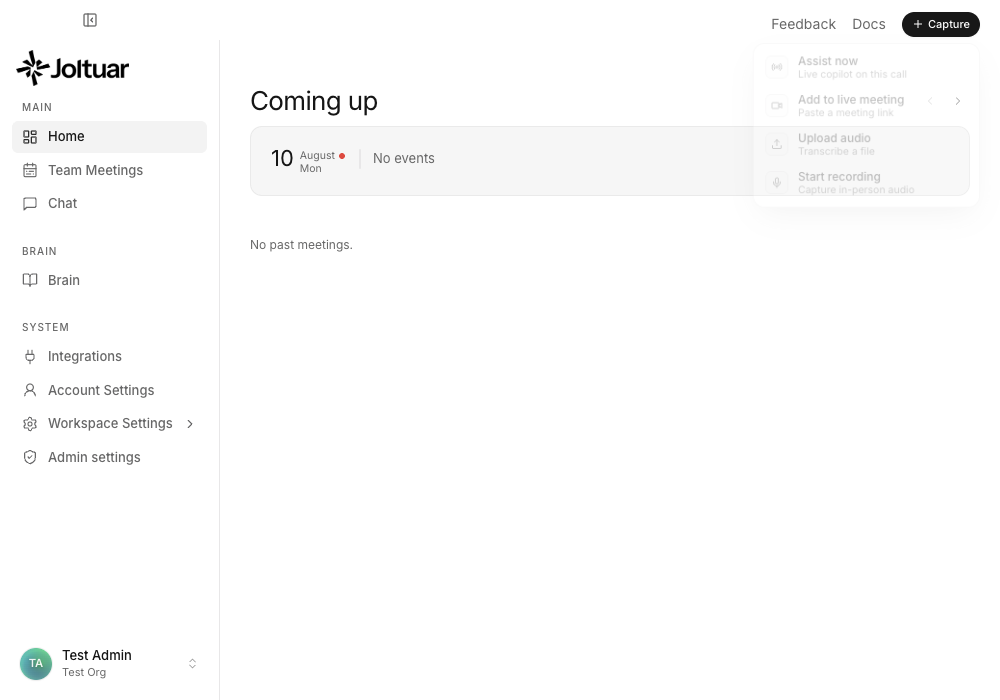
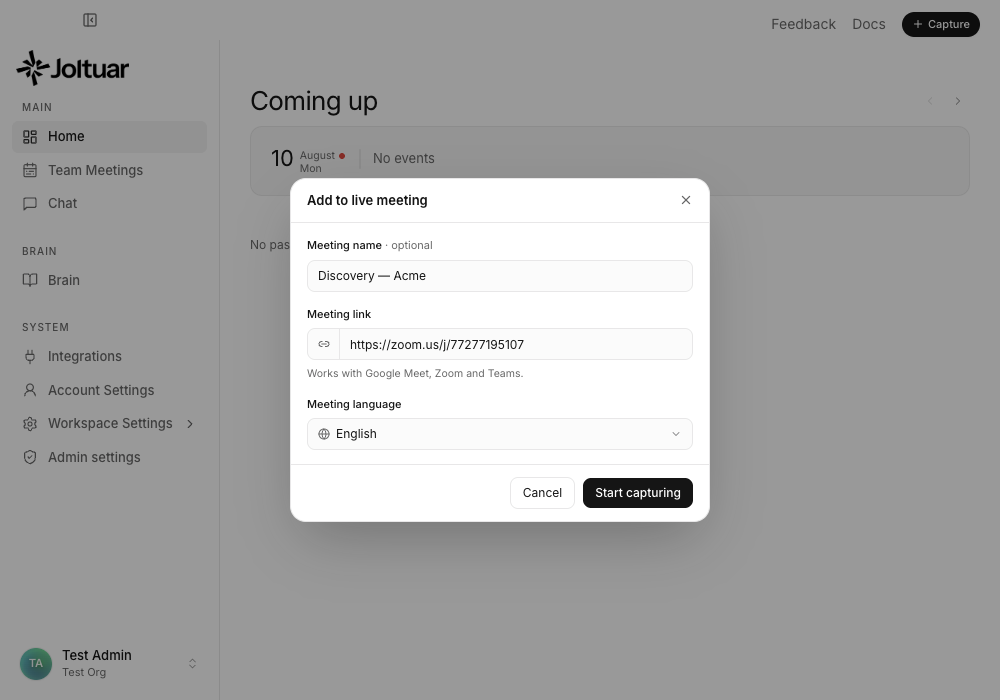
See the guides: Adding the assistant to a live meeting · Starting an assisted call. (#287)
The extension popup now says which account, and lets you pick a theme
Three follow-ups to the popup redesign:
You can see which account you're signed in as. Hovering the status pill in the header used to say only "Signed in to your Joltuar account" — it now shows the e-mail address too, so accounts are no longer easy to confuse on a shared browser.
Light or dark, your choice. The popup still follows your system theme by default, but Advanced → Appearance now offers System, Light and Dark. The choice applies immediately and is remembered. (The in-call overlay stays dark by design — it sits over your meeting rather than matching your desktop.)
One less setting to wonder about. The LLM model (optional) field is gone. It was an expert escape hatch that most people had no way to use correctly — and a model typed there could quietly stop working if your organisation changed which models are allowed. The assistant now always uses your organisation's configured model. If you had a custom value saved, it is cleared on update.
See the guide: Live assist in the browser. (#286)
A cleaner Chrome extension popup
The extension popup has been rebuilt around the one thing you actually open it for: starting the assist. Confirm consent, click Start assist — that's the whole popup at rest. It follows your system light or dark theme, and a status pill in the header tells you at a glance whether you're signed in (or paired with the desktop app).
Everything you rarely touch — microphone access, where the assist appears, transcript source, language, updates and the manual token override — now lives in a collapsed Advanced section instead of competing for attention. Auto capture meetings keeps its own card with a proper switch, and the version number moved to a quiet footer alongside Sign out.
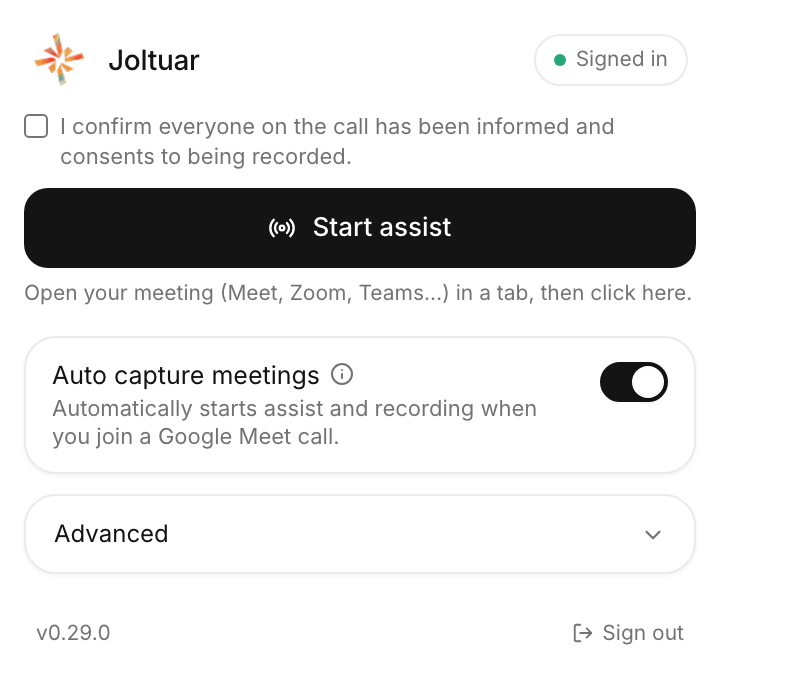
See the guide: Live assist in the browser. (#285)
Smoother start with the Chrome extension
Starting assist while the Chrome extension is still waking up no longer greets you with an immediate "No connection to the Chrome extension". Joltuar now shows a short Connecting to the Chrome extension… window instead, and if the extension checks in during those few seconds the session simply starts on its own — nothing left to click. Only if nothing connects do you get the verdict, still with both ways out: Run without sink mode or Cancel. When you want to check on the extension, its live status lives in Settings → Chrome extension.
See the guide: Using Joltuar with Google Meet (Chrome extension). (#278)
Meetings get their real names
Sessions you start from the browser extension no longer end up as "Untitled meeting". When the call matches an event on your connected calendar (same meeting link, around its scheduled time), the session attaches to that event and keeps its name. When there is no calendar match, Joltuar names the meeting after the title of the meeting tab itself — and in the in-call panel, if the page only reveals the real name a moment after you join, the meeting's name quietly corrects itself.
The Meeting detected notification got smarter too: if a meeting from your calendar is happening right now, Start Joltuar (and Open Joltuar) attach the session to it — name included — instead of creating a separate unnamed entry. (#232)
Start the assistant straight from "Coming up"
Rows in the dashboard's Coming up list now have a Start action — hover a meeting to reveal it. It works for any upcoming meeting, including ones without a meeting link, which previously had no way to be started from the list. The session keeps the meeting's own name.
See the guide: Starting an assisted call from the Coming up list. (#232)
A clearer fallback name
When a name really cannot be determined — for example after Assist now — the meeting is now called "Meeting 2026-08-01 09:34" (or "Spotkanie …" when your conversation language is Polish), using your local time. Previously it read "Untitled meeting" with a UTC timestamp that didn't match your clock.
Signing in to staging no longer signs you out of production (and vice versa)
Your sign-in session is now stored per app — the regular app and the staging app each keep their own, in an encrypted file instead of a single shared macOS Keychain item. This fixes two annoying side effects of the old shared storage: signing into one app could silently sign the other one out, and macOS would sometimes prompt you for your login-keychain password just to read the session. After updating, you'll be asked to sign in once. (#273)
v0.28.4 — 2026-08-04
The notification's main button always leads with joining the call
The upcoming-meeting notification's main button now always says Join Meet (or Zoom/Teams) with "& open Joltuar" whenever the meeting has a link, and Open Joltuar only when it doesn't. Picking an option from the little dropdown is a one-off action again — it no longer silently becomes the default for future notifications. (This replaces the "pick your default action once" behavior introduced in v0.28.1, which turned out to be confusing: one dropdown click could permanently swap the main button away from joining the call.) (#234)
Clicking a meeting notification actually starts your assist
Clicking Start Joltuar, Join meeting or Open Joltuar on a meeting notification now genuinely starts the live assist session for that meeting — with the usual recording-consent confirmation if you have it enabled — instead of only bringing the Joltuar window to the front. If a session is already running, you get a clear message saying so rather than silence. (#231)
Joltuar starts with your computer out of the box
Starting Joltuar at login is now on by default, so it is ready the moment you need it instead of something you have to remember to enable. It still starts quietly in the background without opening a window, and Account Settings → Startup still has the switch to turn it off — if you do, that choice sticks and Joltuar won't quietly re-enable it later. (#231)
The scheduled-meeting notification stops changing under your hands
The notification for a scheduled meeting used to switch its main button to Start Joltuar the moment the meeting time arrived, and then hang around for half an hour. It now looks the same from a minute before the meeting until three minutes after it starts, and then disappears on its own. Start Joltuar lives only on the "Meeting detected" popup, where it belongs. (#229)
Notifications look right, and show up over full-screen apps
The notification toast no longer draws a stray rectangular frame and shadow around itself, and there is no black flash the first time it appears. It also shows up over an app running in full screen, so a browser call can no longer hide it. (#229)
Meeting detection: quieter, and it sees more calls
The Meeting detected popup now shows for 30 seconds with a countdown bar and then hides itself, once per call instead of lingering. It also catches calls it used to miss: Zoom and Teams often open a microphone you picked inside their own settings rather than your system default, and those are now detected too (macOS 14.4 and newer). And system sounds no longer fool it — speech and accessibility services that briefly touch the microphone, the kind of thing a web app playing a completion chime triggers, stopped producing phantom popups. (#229, #231)
v0.28.1 — 2026-07-30
Meeting detection: Joltuar notices when a call starts — no calendar needed
When another app starts using your microphone — a Google Meet tab in Chrome, Zoom, Teams, any call — Joltuar shows a Meeting detected notification in the top-right corner of your screen, with the app's name as the source (for example "Chrome"). One click on Start Joltuar starts a live assist session for that conversation, even though it was never on your calendar. Dismissing the notification keeps it quiet for the rest of that call, and it disappears by itself when the call ends. Calendar notifications always take priority, and nothing is shown while an assist session is already running.
Detection works on macOS and Windows. You can turn it off in Account Settings → Notifications with the new Detected meetings toggle. (On macOS the app name appears on macOS 14.4 and newer; older versions show a generic source.)
The in-progress notification's Start Joltuar button actually starts Joltuar
(Superseded in v0.28.4 — the scheduled notification no longer has an in-progress phase, and every notification action now starts the assist. See the v0.28.4 entries above.) Clicking Start Joltuar on the notification shown during a meeting used to only bring the Joltuar window to the front. It now starts the live assist session for that meeting right away — with the usual recording-consent confirmation if you have it enabled.
Pick your default notification action once
(Reverted in a later version — see the unreleased entry above.) The meeting notification's dropdown (Join Meeting / Open Joltuar) now remembers your choice: whichever option you pick becomes the main button of future notifications, until you pick a different one. If you prefer opening Joltuar over jumping straight into the call, choose it once and every upcoming-meeting notification leads with it. This only applies to the dropdown on a scheduled meeting notification — once a call is already in progress, or Joltuar just detects you're on one, the main button always says Start Joltuar.
Your chats have a home of their own
The Assistant is now called Chat, and your past conversations have moved out of the chat window into the sidebar. Hover the Chat entry and a small arrow appears: click it to unfold your most recent conversations right there, so you can pick one up without leaving whatever you were doing. Clicking one opens it; clicking Chat itself always starts a fresh conversation.
View all at the bottom of that list opens the new Chats screen — every conversation you have had, with a search box to find one by title and a menu on each row to rename or delete it. The chat window itself is now just your conversation and the message box: the dividing line above the box is gone and the model you are talking to sits neatly beside the send button.
Meetings stay in "Coming up" until they are actually over
A meeting used to vanish from the "Coming up" card the moment you started the call, which could leave today's row reading "No events" while you were still talking. It now stays there for its whole scheduled time and moves down to your past meetings the second that time is over — no refresh or navigation needed. Meetings nobody joined follow the same rule, so the card only ever shows what is still ahead of you or happening right now. (#223)
Start Joltuar automatically when you log in
Account Settings has a new Startup section with a single switch: turn it on and Joltuar starts by itself whenever you log in to your computer. It starts quietly in the background without opening a window, so it is ready when you need it instead of something you have to remember to launch. Open it any time from the Joltuar icon in your menu bar (macOS) or notification area (Windows), exactly as you would after closing the window.
The switch is off until you turn it on, and turning it off removes Joltuar from your startup items again. If you ever remove it yourself in your system settings, the switch reflects that too. (From v0.28.4 the switch starts on — see the v0.28.4 entries above.)
Live Assist waits until you're actually in the call
Auto capture used to start while you were still on Google Meet's "Ready to join" screen — the assist panel appeared, a meeting was created, and the moments before you joined ended up in the recording. Joltuar now waits for proof that you are inside the call, so Live Assist comes up the moment you join and never before. (#225)
Auto capture works with the desktop app
"Auto capture meetings" is no longer limited to the in-call browser panel. In Desktop app mode, joining a Google Meet call now starts the session in the app by itself. If the app isn't running yet, Joltuar remembers the call and starts as soon as you launch it — you don't have to rejoin or press Start. (#225)
The end-of-call notice says your meeting was saved
When a call ends, the panel now confirms that your meeting has been saved before it closes itself. (#225)
The extension icon shows when call audio is still uploading
Call audio finishes uploading after the call ends, once the assist panel has already closed. The Joltuar toolbar icon now shows an amber arrow while an upload is in progress, and a red exclamation mark if it failed and will be retried — so you know when it is safe to close your browser. (#225)
v0.28.0 — 2026-07-29
Your summary template now decides the whole format
A summary template's text is the single thing that shapes the summary you get. Write a template that asks for a retrospective without next steps and the summary has no next steps; ask for ten numbered points and you get ten numbered points. Previously every template produced the same narrative-plus-next-steps shape no matter what you wrote, because the format was fixed behind the scenes. The editor reflects this too: the field is now called Output structure, it opens pre-filled with the built-in default so you have a working example to edit, and it accepts Markdown headings and lists. (a73aefbf, d7903029)
See Meeting summaries for the full walkthrough.
Summaries keep their headings and lists
Summaries now render the way the template wrote them — real headings, numbered lists, bullets and bold text instead of one flat block of text. Your existing summaries are included: their "Next steps" line becomes a proper heading, so nothing you already have looks worse than before. (9df15c3d, 2e2a9c01)
Meeting notifications on your desktop
Joltuar now shows its own notification in the top-right corner of your screen one minute before a scheduled meeting starts. It shows the meeting title and time, a one-click Join Google Meet button (Zoom and Teams too) that also opens Joltuar, and a dropdown with more options: join the meeting, open Joltuar, or jump straight to notification settings. While the meeting is in progress the notification stays on screen with a live progress bar and a Start Joltuar shortcut for the meeting window (30 minutes) or until you close it. (That in-progress phase was removed in v0.28.4 — the notification now keeps the same look until three minutes after the meeting starts, then disappears.)
You control these popups in Account Settings → Notifications with the new Scheduled meetings toggle, and the auto-start "Minutes before meeting" field is now an easier − / + stepper.
v0.27.5 — 2026-07-29
Google Meet calls keep a complete recording
Calls captured through the extension's direct Google Meet connection now save their audio to the correct meeting instead of sometimes leaving only a transcript or an unavailable recording. Pausing Live Assist no longer creates a gap in the recording, and the final moments of a call are kept while the session shuts down. (#220)
Recordings survive capture changes and reconnects
Joltuar now keeps extension recording chunks safely buffered while capture switches modes or the extension reconnects to the desktop app. The recording remains attached to the right meeting and can finish uploading after a temporary interruption, so playback stays available when you return to the call summary. (#220)
v0.27.4 — 2026-07-29
Download recordings from the web app
You can now download a meeting recording directly from its post-call page in the browser. Joltuar streams the WebM file straight to your browser's download manager and gives it a useful name based on the meeting, so even long recordings download without being loaded into page memory first. (#219)
Clearer, more honest recording playback
Quiet microphone audio is now lifted independently when Joltuar prepares a cloud recording, making softer voices easier to hear without clipping louder call audio. If a recording is missing, expired or cannot be loaded, the player now tells you it is unavailable instead of showing a timeline that appears to be playing. (#219)
Joltuar's web app has a new home
The web app now uses app.joltuar.com as its canonical address. Sign-in, OAuth and the Chrome extension follow the new address automatically, while the trusted previous Joltuar addresses remain supported during the transition. (#219)
v0.27.3 — 2026-07-29
Fresh recordings are ready sooner
Newly completed recordings now move ahead of older uploads waiting in the background, and a stalled audio conversion can no longer block the whole queue for minutes. Your latest call reaches cloud playback sooner, while a recording that is still uploading continues to play from its safe local copy in the desktop app. (#216)
Post-call transcripts stay closer to what was said
When a meeting ends, Joltuar now saves the finalized conversation directly instead of unnecessarily rewriting it in the background. This preserves the original wording and intentional repetitions while still removing overlapping fragments from the transcription service. If the meeting language calls for a translation, the translated version is saved reliably without an older request replacing it.
Language changes made during Live Assist are also remembered after a temporary extension reconnect, so the rest of the call continues in the language you selected. (#218)
Live Assist opens in a better position
The compact Live Assist window and the Chrome extension overlay now open near the left edge, vertically centered, and at roughly three quarters of the available screen height. The desktop window can also be resized taller than before. After the new starting position is applied once, Joltuar continues to remember where you move and resize it. (#217)
v0.27.2 — 2026-07-28
Change language without losing the conversation
Changing the conversation language during Live Assist no longer sends new audio to the previous language session or drops words while speech recognition reconnects. Anything said during the switch is kept and transcribed using the newly selected language. (#215)
Long meetings recover on their own
In some long sessions, speech recognition could remain technically connected but stop returning new transcript lines. Joltuar now detects that silent failure and reconnects automatically while keeping the captured audio queued, so transcription resumes without restarting Live Assist. This recovery works for both desktop calls and meetings captured through the Chrome extension. (#215)
v0.27.1 — 2026-07-28
Final sentences stay final
Once a sentence appears as final in Live Assist, a late correction or stale update from the transcription service can no longer rewrite it, remove it or bring back an older version. Repeated updates are safely ignored too, so reconnecting does not create duplicate lines. (#212)
Speakers stay separate
In calls with several people, Joltuar now keeps each speaker's identity stable throughout the session — even after a reconnect. Different participants who happen to use the same display name are no longer merged into one person when the meeting source can tell them apart. (#212)
A more resilient transcript from every meeting source
Desktop calls, browser-extension meetings and Joltuar bot sessions now share the same reliable transcript flow. Refreshing or reopening Live Assist restores the complete session history, a new session cannot inherit late lines from the previous one, and a slower microphone or system-audio start no longer drops the beginning of one side of the conversation.
Extension and bot sessions also finish more carefully: queued final sentences are delivered in order instead of being discarded under load, and interrupted bot processing can resume from the transcript already saved in the cloud. (#212)
v0.27.0 — 2026-07-27
Your recordings now live in the cloud
Recordings used to sit as large files on the machine that made them — the web app couldn't play them back, and a reinstall or a second laptop lost the archive. Calls run through the Chrome extension recorded nothing at all. Now every recording, from the desktop app and from the extension alike, is stored in the cloud: play it on your desktop, in the browser, or as someone holding a share link. "Save audio" downloads the cloud copy, as a .webm file instead of .wav. Recordings still expire after 30 days. (#205)
Uploads are also patient about bad days: a recording that can't be sent right now waits and retries on its own instead of holding up everything recorded after it, and the local copy is never deleted until the cloud confirms it can hand the file back. On the desktop, a recording that hasn't finished uploading still plays from the local file, so you never get a silent player. (#210)
Extension calls that produced no transcript at all
A few people found that meetings captured through the Chrome extension transcribed nothing whatsoever — no error, just an empty transcript. Two capture attempts starting at almost the same moment raced each other to set up the extension's audio pipeline, and the one that lost the race aborted the whole start. Capture now starts once, cleanly, however many times it is asked.
Usage data is now on by default
Anonymous usage data — which features get used, what breaks — now starts switched on, where it previously had to be turned on by hand. It tells us which parts of Joltuar are worth improving, and almost nobody was sending it, so we were improving blind. Session replay stays off unless you switch it on, transcripts and conversation content are never sent, and the whole thing is one toggle under Settings → Diagnostics & privacy if you would rather not take part.
Separately, meetings captured through the extension or the web app were being counted as twice as much audio as they actually contained. Your usage figures are accurate now.
Transcripts show the other person's name instead of "Speaker 1"
In a call linked to a calendar meeting with exactly one other attendee, the transcript now shows that person's name — in the live floating window, in the transcript after the call, and in the AI summary and analysis. If an unexpected extra voice appears it stays "Speaker 2": the name is used only when there's no doubt who is talking. Meeting lists, hover cards and summary chips also show attendee names where your calendar only gave an email address, for people in your organization. (#197)
One spoken sentence, one transcript line on Google Meet
A single sentence could land in the transcript several times over, each copy a little longer than the last — Meet delivers captions as a stream of growing updates, and each update was becoming its own line. A caption that keeps extending what it already said now stays one line. Saying the same sentence again a few seconds later still gives you two lines, as it should. (#208)
Fewer echo duplicates when you run the call on speakers
On laptop speakers — especially the MacBook's built-in ones, where echo cancellation has a hard ceiling — what the other person said could leak into your microphone and show up a second time in the transcript, attributed to you. Those duplicates are largely gone. One trade-off worth knowing: the final version of your own sentence now appears in the live view up to about 1.8 seconds later, because Joltuar briefly waits to compare the two audio channels. You still see your words live as you speak; only the finalized line settles in slightly later, and the saved transcript is unaffected. (#199)
Live Assist from the extension now works on Zoom and Teams in the browser
Desktop mode ("sink mode") is no longer Meet-only. On a Zoom or Teams meeting tab, clicking Start assisting in the Joltuar launcher no longer fails with a permissions error — instead it asks you to click the Joltuar icon in the Chrome toolbar once (a Chrome requirement for capturing tab audio), and the moment you do, capturing starts and the desktop app enters live assist automatically. One icon click covers the whole meeting. If the launcher previously asked you to sign in even though you were paired with the desktop app, that's fixed too. (#200)
Starting from the desktop app upgrades to tab capture with one click
When you press Start in the desktop app while your meeting runs in the browser on Zoom or Teams, the session now begins immediately using your computer's system audio, with a banner explaining how to switch: click the Joltuar icon on the meeting tab, and the session seamlessly swaps over to capturing the meeting tab through the extension — no restart, no lost transcript. (#200)
Calmer, more accurate system-audio warnings
The amber "No system audio" banner used to appear instantly with alarming permission instructions — even when Joltuar was already fixing the problem on its own, and even though speaker recognition keeps working in those moments (it switches to a voice-based fallback). The banner now only appears when the problem actually persists, and its message is honest: transcription continues from your microphone with speakers still separated, and the Screen Recording permission tip is offered only if the issue keeps coming back. A brief audio-capture hiccup at the start of a session also recovers by itself now instead of disabling system audio for the rest of the call. (#201)
Shared meeting links now show guests the full picture
When someone shares a meeting with you by link, you no longer get just the summary: the full conversation transcript appears in the right-hand panel, the participant avatars show at the top of the page, and a Download button lets you save the transcript or summary in browser-friendly text formats (audio and PDF stay available to the meeting owner in the desktop app). Owner-only actions (sharing onward, changing the meeting language, reprocessing) remain reserved for the owner, and anything that looks like a participant's email address is kept private. (#198)
v0.26.0 — 2026-07-22
The Live Assist pill no longer gets stuck under a status message
When Live Assist was fully minimized into the pill, a status banner (for example "The Chrome extension stopped streaming — switched to local audio") could cover the entire pill and block every click, leaving no way to bring the panel back. Status messages now stay hidden while the pill is showing — instead, a small amber dot appears on the pill to let you know something needs your attention, and the full message is waiting for you when you expand. (#193)
Cleaner, duplicate-free notes on the live Map
During longer meetings the Map used to repeat the same point in slightly reworded forms — the same fact showing up two or three times, sometimes with a stray list number like "4)" or "5)" at the start. Joltuar now recognizes when a new note says the same thing as one it already captured (even reworded or reinflected) and keeps just one, and it no longer leaks list numbering into the text — so your Map stays tidy and easy to scan. Applies everywhere Live Assist runs: the desktop app, the web app, and the Chrome extension overlay. (#192)
v0.25.1 — 2026-07-21
Grab the desktop app straight from the web app
The web app now offers a download link for the Joltuar desktop app, matched to your computer — "Download Joltuar for macOS" or "Download Joltuar for Windows". You'll find it in three places: on the home screen's launcher card, in Settings under About, and on the sign-in page. Clicking it downloads the latest installer directly. (#191)
Shrink Live Assist down to a tiny pill
When you need the assist out of the way but still working, use the new "–" button in the bottom-left of Live Assist (next to minimize and settings). The whole panel collapses into a small pill with the Joltuar spark and an activity indicator — the assistant keeps listening, transcribing, and preparing hints the entire time. Click the spark to bring the full view back. Works the same in the desktop app and in the Chrome extension during browser meetings, and you can drag the pill anywhere on screen. (#190)
v0.25.0 — 2026-07-21
Transcripts now credit the right speaker
In multi-person calls, a short reply like "Okay." and the sentences that followed could be credited to the wrong person, and one transcript line could even mix two people's words together. Live transcription now splits a line the moment the voice changes, and once the call ends Joltuar re-checks the recording with a more accurate pass and quietly corrects the speaker labels in the saved transcript — so when you review a meeting, interjections and turn openings sit under the person who actually said them. Applies to meetings with audio recording enabled (the default on desktop). (#188)
The Chrome extension can now hand a call off to the desktop app both ways
Starting "assist on this tab" from the extension while it's set to Desktop-app mode now reliably starts Live Assist in the desktop app instead — including on Google Meet, which previously didn't bridge over at all. And if you start assist from the desktop app itself while your paired extension isn't in the meeting, Joltuar now asks whether to continue without the extension bridge instead of silently failing. (#187)
Map and Story now keep updating when running through the extension
When a call was routed through the Chrome extension into the desktop app, the Map and Story stopped updating live even though the transcript kept flowing — both now update the same way whether the call runs locally or through the extension. Also fixed: clicking "Start assist on this tab" from the extension popup while set to Desktop-app mode was incorrectly opening the in-call overlay instead of handing off to the desktop app. (#189)
A cleaner live-assist panel
The "KB" status pill and the red/amber/green coverage dots on Map topics are gone — they weren't reliable indicators and cluttered the panel. The stage pill now shows just the meeting stage (e.g. "Discovery") without your organization name, and the pinned pulse card keeps its border when collapsed instead of blending into the list. (#186)
Smoother invitation and account-activation flow
Accepting a workspace invitation now joins you straight into that organization, without a spare empty "Personal" workspace showing up alongside it. And clicking the activation link from your verification email now lands you back on the app instead of on a bare API page. (#185)
v0.24.4 — 2026-07-21
The Map fills in as fast as on desktop
In browser meetings the Map used to lag — the first points took much longer to appear and only refreshed on a slow fixed timer, while the desktop app updated within seconds. The browser overlay and web app now use the same live update engine as desktop, so Map points show up within a few seconds and keep refreshing as the conversation moves. (#183)
No more duplicate points
The same fact, reworded a little, could pile up as several near-identical points under a section. Points are now revised in place instead of stacking — a detail that gets refined updates the existing point rather than adding a duplicate. (#183)
Story recommendations that stick and stay relevant
Story suggestions in the browser could vanish between refreshes and weren't always tailored to what you'd already uncovered. Recommendations now accumulate through the call instead of being wiped each pass, and each section sees the customer context captured elsewhere on your Map, so the advice is better grounded. The per-section "AI advise" button also works reliably now — it always runs (even if a background refresh is mid-flight) and updates only the section you clicked. (#183)
Your admin prompt rules now apply in the browser too
If your workspace admin customized the Map or Story prompts in the LLM Prompt Registry, those rules were quietly ignored in the Chrome extension and web app — only the desktop app honored them. The browser surfaces now use the exact same prompt engine, so your customizations apply consistently everywhere. (#183)
v0.24.3 — 2026-07-20
Your Map keeps every detail for the whole call
The live Map used to lose track of what was said: points under a section would change, disappear, or get replaced a few minutes later, so a fact you saw early in the call was gone by the time you looked again. The Map now keeps every detail it captures and only adds to it as the conversation moves on — nothing you've already discovered drops off. (#182)
Story now fills in with recommendations
Story sections could stay stuck on "no recommendations yet" for an entire call and never populate. Each section now gets its own suggestions reliably, and one section failing to load no longer blanks the rest. Story also works when your knowledge base is thin — instead of staying empty, it coaches from the conversation itself (while still never inventing product details, prices, or terms that aren't in your knowledge base). (#182)
v0.24.2 — 2026-07-20
Speaker echo no longer leaks into your transcript
When Live Assist runs on a Mac using external speakers or headphones, the other person's voice coming out of your speakers used to bleed back into your microphone — so their words showed up a second time on your side of the transcript. Joltuar now cancels that echo in real time, so each speaker stays on their own line and the transcript reads cleanly. Calls on the Mac's built-in speakers were already handled and are unaffected. (#181)
v0.24.1 — 2026-07-20
Clearer call audio on built-in speakers
When you ran Live Assist on a Mac using the built-in speakers, the system's echo processing could quietly muffle audio both ways — the other side sounded dampened, and your microphone was degraded — with the effect spilling over to other apps too. This was most noticeable when another app (a Zoom call, a Google Meet tab) was already using your microphone. Joltuar now detects when another app holds the mic and captures your voice a different way, so the call stays clear and other apps are left alone. (#179)
v0.24.0 — 2026-07-18
A cleaner, monochrome look
Joltuar has a refreshed visual identity: crisp black-and-white accents replace the previous green and blue highlights across the desktop app, the web app and the in-call assistant. Buttons, toggles and active states now share one consistent monochrome style, while status colors (live indicators, warnings, errors) keep their meaning.
Home is your launchpad for meetings
The Home screen now opens with your upcoming week: today is always visible (with a dot), days without meetings stay out of the way, and hovering a meeting shows its details — platform, duration, stage, language, attendees and whether the Joltuar bot will join. Held meetings also show a one-line summary on hover. The Join button opens the call directly, and on desktop it starts Live Assist at the same time. Below the calendar you'll find your recent meetings grouped by day.
Team Meetings replaces My/All meetings
Past meetings now live in a single Team Meetings view for everyone: search by meeting name, people, platform or stage, and narrow by date with quick presets or a custom range. Workspace owners and admins see the whole team's meetings; everyone else sees their own.
Simpler account settings
Account settings are now one simple page — profile, notifications, conversation language, Chrome extension and app info, with advanced options tucked into a collapsible section. AI behavior (hint style, models, cadence) is now managed centrally by your workspace administrators, so those options no longer appear in personal settings or in the in-call quick settings.
A friendlier assistant
The Assistant now greets you by name with a time-of-day welcome and a refreshed input bar.
No more repeated lines in the browser transcript
During a Google Meet call, your own speech is no longer duplicated in the Transcript tab. Previously a single sentence could show up several times in a row — now each utterance appears once, as spoken. (#177)
Map insights now carry over from browser meetings
Meetings run through the browser extension (Meet, Zoom, Teams) now keep their Map sections in the post-call summary, just like desktop sessions. Previously the summary could open with an empty Map even though the Map was populated live during the call. (#174)
A more polished guest view
Opening a shared meeting link as a guest now shows a refreshed welcome dialog — the person and workspace who shared it stand out, with a clear "Try Joltuar" button. The header carries a single, tidy "Log in to Joltuar" link, and the attendee avatars show only the people who were actually in the meeting (no more stray "You" chip that didn't belong). (#176)
v0.23.1 — 2026-07-17
The meeting host is shown by name
The "Teammates with access" list in the Share popover now shows the host's actual name and email instead of a generic "Host" placeholder. (#173)
Smarter invites
You can press Enter to send an invite, and the Invite button stays disabled until the address looks like a real email. If the invite was added but the email couldn't be delivered, you now get a clear warning — so you can copy the link and send it yourself instead of assuming the guest was notified. (#173)
Copy link tells you when there's nothing to copy
The Copy link button is disabled until a share link exists, with a hint to pick an access level first — previously it silently did nothing. (#173)
Guest views are even more private
Shared-meeting guests could in some cases see an attendee's email address shown as their name (this happens with some Outlook-synced meetings). Emails are now stripped from guest views entirely. And when your workspace exposes only the Map tab (or only Story) to guests, the other tab's insights are no longer included behind the scenes. (#173)
Share links work across workspaces
If you belong to several workspaces and open a share link from a workspace that isn't your currently active one, you now get the read-only guest view — previously this could land on a "not found" error. (#173)
Clear message when only the host can manage sharing
If a meeting was shared with you and you open its Share popover, you now see a friendly note that only the host can manage sharing — instead of a generic "Something went wrong" error. Sharing controls also no longer show stale data from a previously viewed meeting. (#173)
v0.23.0 — 2026-07-17
Share a meeting with anyone
Meetings you can manage now show a Share button next to Download. Open it to invite people by email, choose who can access the meeting — Only Owner, your Workspace, or Anyone with the link — and copy a shareable link to send however you like. (#170)
Guests can open a shared meeting without an account
Open a share link and you land on a clean, read-only view of the meeting — no sidebar, showing the summary and transcript plus any extra tabs your workspace chooses to expose. Teammates in your organization who have access get the full in-app experience instead. (#170)
Choose what guests can see
A new Sharing tab in Workspace settings lets owners and admins pick which extra tabs — Map, Story, Analysis — are visible to guests on a shared meeting. Summary and Transcript are always included, and internal coaching notes (Pulse and hints) are never shown to guests. (#170)
The Windows app now looks like the Mac app
On Windows, the white system title bar and the Edit/View/Window/Help menu are gone. Window controls (close, minimize, maximize) now sit at the top-left of the app's own top bar, right next to the sidebar toggle, with Feedback and Docs at the top-right — the same layout you know from macOS, drawn in your app theme (light or dark). (#169)
No more clipped content at the bottom of the window on Windows
Right after launching the Windows app, the bottom of the window — the audio player bar, your user chip — could be slightly cut off until you manually resized the window. Everything is now fully visible from the first paint. (#169)
Meeting audio is captured no matter where it plays on Windows
If your meeting app played its sound to headphones while your system default output was the speakers (or the other way around), Joltuar heard nothing and the customer's side of the call went untranscribed. The Windows app now captures audio from all output devices at once, so transcription works regardless of which device your call plays to — no configuration needed. On systems where all-device capture isn't available (Windows 10 releases older than mid-2020), the app keeps capturing the default output device as before. (#169)
Fewer duplicated transcript lines when using loudspeakers on Windows
When the customer's voice plays through loudspeakers, your microphone picks it up too, which could show up as duplicated or garbled lines in the transcript. The echo filter now also catches echoes spanning more than one sentence, and the microphone no longer auto-amplifies the speaker bleed. (#169)
v0.22.0 — 2026-07-15
Calendar meetings show up everywhere, always
Meetings from your connected Google Calendar or Outlook now sync on our servers, so they appear in both the browser app and the desktop app — even when the desktop app is closed. The list refreshes automatically whenever you open Meetings, Sync now works on both platforms, and the auto-sync toggle is one shared setting instead of a per-device one. (#158)
Connect your calendar from the browser
You no longer need the desktop app to hook up a calendar. Head to Integrations in the browser app and connect Google Calendar or Outlook directly — the same sync panel you know from the desktop is now available on the web too. (#158)
Cancelled meetings no longer clutter your lists
When a meeting is cancelled in your calendar, it now disappears from Upcoming, Completed, and the Dashboard instead of lingering as a greyed-out row. (#158)
Feedback and Docs buttons now respond to clicks on desktop
In the desktop app, clicking Feedback or Docs in the top-right corner could grab the window (as if you were dragging it) instead of registering the click. Both buttons now work as intended — Feedback opens the form, Docs opens the documentation site. (#159)
Meet participant transcripts stop vanishing mid-call
In the browser overlay on Google Meet, other participants' speech could stop being transcribed after a brief network hiccup and never come back — you'd end up seeing only your own side of the conversation. Transcription now recovers from those interruptions on its own: after a blip, fresh speech picks up again instead of replaying a stale fragment. And hitting a usage limit mid-call no longer looks like a sign-in error that silently mutes a speaker for the rest of the meeting. (#160)
v0.21.3 — 2026-07-14
Extension meetings take their name from your calendar
Start live assist from the Chrome extension on a meeting that's in your connected Google or Outlook calendar, and the recording now shows up with the event's real title — plus its platform and attendee list — instead of a generic "Meeting 7/13/2026, 11:09:46 AM". If the meeting was already planned in Joltuar (for example via calendar sync), the session picks up that entry instead of creating a duplicate. (#156)
Platform is always filled in for extension sessions
Meetings recorded from the Chrome extension now always show where the call happened — Google Meet, Zoom, or Teams — detected straight from the meeting tab, even when the call isn't in your calendar. (#156)
Send feedback or open the docs from anywhere
Every screen now has Feedback and Docs buttons in the top-right corner. Docs takes you to the documentation site. Feedback opens a short form — type whatever's on your mind and hit Submit, and it comes straight to us. We don't reply to submissions, but we read every one. Works in both the desktop app and the browser. (#157)
Sign in from the extension in one step
Signing into the Joltuar Chrome extension now takes you straight to a single sign-in screen — with both Continue with Google and Continue with Microsoft, in English — instead of first showing a near-identical screen inside the extension. One screen, no duplicate step. (#155)
"Start assist on this tab" is front and center
The extension popup now opens with the Start assist on this tab card — and its recording-consent check — right at the top, so starting live assist on your current meeting tab is the first thing you see. (#155)
New installs start in browser-overlay mode
Freshly installed extensions now default to the in-call browser overlay rather than desktop-app mode, so the in-tab live-assist panel works out of the box. If you already picked a mode — or you're actively paired with the desktop app — nothing changes for you. (#155)
Update notices only when an update is really ready
The extension used to flag a new version before the Chrome Web Store could actually serve it, so clicking Update now did nothing. The update notice and its button now appear only once Chrome has the new version staged and ready to apply. (#155)
v0.21.2 — 2026-07-14
Ask Joltuar about your meetings from Slack
A new Slack integration adds the Joltuar bot to your workspace with a single Add to Slack click (Settings → Integrations). Once it's installed, anyone in your workspace can @mention the bot or DM it to ask about your meetings and your Brain — it answers with the same assistant that powers the web Assistant chat, right inside Slack. (#109)
Import your Gong calls into Joltuar
A new Gong integration (Settings → Integrations) connects your Gong account with an API Access Key and Secret, then pulls your recorded Gong calls — transcripts included — straight into Joltuar as meetings you can search, summarize and explore like any other call. Your credentials are stored encrypted, and the import runs from the desktop app. (#108)
Rename speakers in any finished meeting
Renaming a speaker in a finished meeting's transcript used to work only after the meeting had been opened on the desktop app at least once — on the web, other meetings showed the transcript but no rename option. Now every finished meeting with a transcript lets you click a speaker and rename them, on desktop and web alike. (#153)
Participant avatars on every finished meeting
The row of participant avatars next to the Download button showed up only for meetings imported from your calendar. Ad-hoc calls — joining a Meet from a link, an unscheduled conversation — now show avatars too, built from the people speaking in the transcript. (#153)
Browser-recorded meetings show up in the desktop Recent list
A meeting recorded through the browser extension could appear in the web app but never make it to the desktop Recent list — the desktop had picked it up mid-call and never noticed it finished. The desktop now catches up as soon as the meeting completes, and previously affected meetings fix themselves automatically. (#153)
The Map of browser calls now fills in on desktop
Opening a browser-recorded meeting on desktop could show an empty Map tab even though the web app had the full picture. The desktop now pulls the meeting's Map when you open it. Meetings recorded before v0.21.0 predate Map saving and stay empty. (#153)
Meetings no longer get stuck "in progress"
If the connection hiccuped at the exact moment a browser call ended, the meeting could stay marked as in progress forever and never appear under Recent. The extension now keeps retrying until the meeting is properly closed. (#153)
Change a finished meeting's language
A new language button next to Download on a finished meeting lets you switch the whole meeting to another language — nine are supported, including Spanish, German and Japanese. Confirming re-translates the transcript from the original recording transcript (no audio re-transcription), translates the stored Map and Story text in place, and regenerates the summary in the new language. Works on both desktop and web; if a step fails along the way you get a clear message with a Retry.
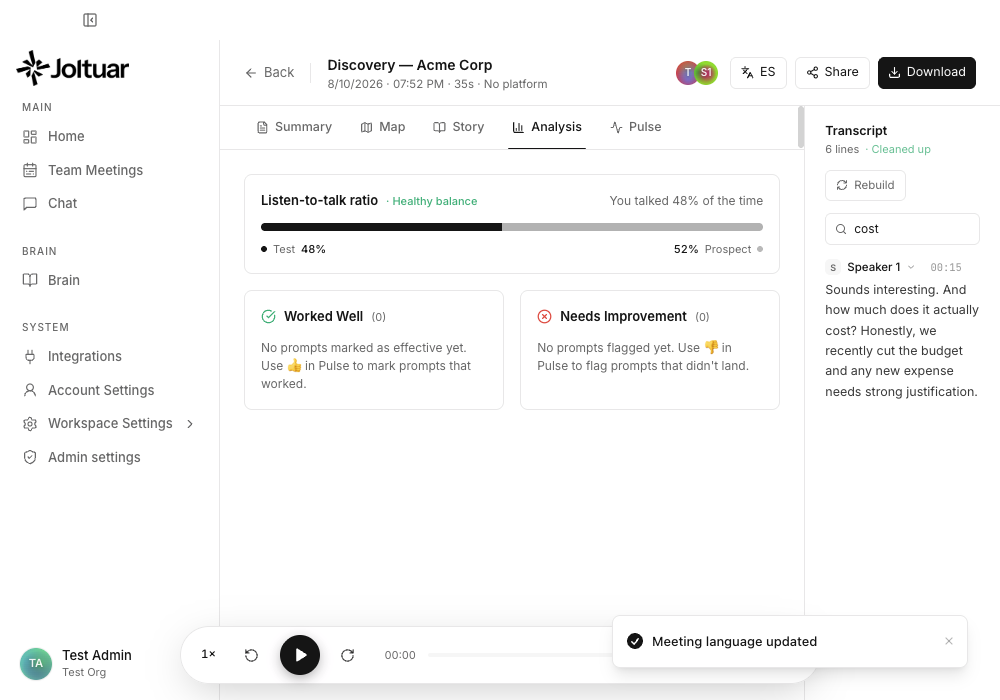
See the full Reviewing a meeting after the call guide.
Reprocess now respects the meeting's language when it re-runs the transcript clean-up. (#144)
📵 Live assist recovers when the Chrome extension goes dark
If the browser extension feeding your desktop live assist dies mid-call (a crashed tab, a stale extension version), the session no longer sits silently dead until the meeting ends. The desktop app now notices within seconds, switches itself to local audio capture, and shows a banner ("The Chrome extension stopped streaming — switched to local audio") — transcription, the Map and hints keep flowing for the rest of the call. (#152)
🔄 "Update now" in the extension popup tells you what happened
Clicking Update now in the extension popup used to do nothing visible when the Chrome Web Store hadn't published the announced version yet. The popup now says so plainly ("The store hasn't published this update yet — try again later."), and also explains when Chrome is rate-limiting update checks. (#152)
v0.21.1 — 2026-07-12
🤖 The meeting bot joins under your name
When Joltuar sends a notetaker bot into a call, it now appears on the participant list as "[your name] notetaker" (for example, "Jan Kowalski notetaker") instead of a generic assistant name — so everyone in the meeting can tell whose notetaker it is. The name comes from the name the bot is sent with, falling back to your account name.
🧑🤝🧑 Speaker suggestions from all your past meetings
When you rename a speaker in a finished meeting's transcript, the suggestion list now also includes people you've met with in your other meetings — drawn from calendar invitees and past transcripts — on top of the current meeting's participants. Only your own meetings feed these suggestions; people from a colleague's meetings never show up.
🌙 The live assistant stays dark in light mode
The in-call assistant window (the prompter) now always renders as the dark glass panel it's meant to be. Previously, if you used Joltuar in light mode, it came up as a washed-out grey panel instead.
v0.21.0 — 2026-07-10
Rename participants in the transcript — now on the web too
You can now click a speaker's name in a finished meeting's transcript in the web app and rename them, exactly like on desktop. Renames and the polished (cleaned-up) transcript are stored in your workspace, so a rename made on one device shows up everywhere — and unnamed voices keep their stable Speaker 1 / Speaker 2 labels on every surface instead of collapsing into one. (#141)
One list of Meeting types everywhere
Meeting types (the stages you author in Playbooks) used to live in two separate places — the desktop app kept its own local list, invisible to the web app and the in-call overlay. They are now a single workspace list: create or edit a meeting type anywhere and every surface sees it, including the stage picker in the in-call overlay. Your existing desktop-authored types are moved over automatically. (#141)
The Map from browser calls is saved now
When you ran a call through the browser extension or a meeting bot, the Map progress you saw live was lost the moment the tab closed — the post-call Map tab came up empty. Browser calls now save their signals as they happen, so the recap's Map looks just like it did during the call.
(#141)
Generate AI summaries in the web app
The Generate and Regenerate buttons in a meeting's Summary tab now work in the web app — including the summary-template picker. Meetings recorded in the browser or by a meeting bot get their recap without ever opening the desktop app.
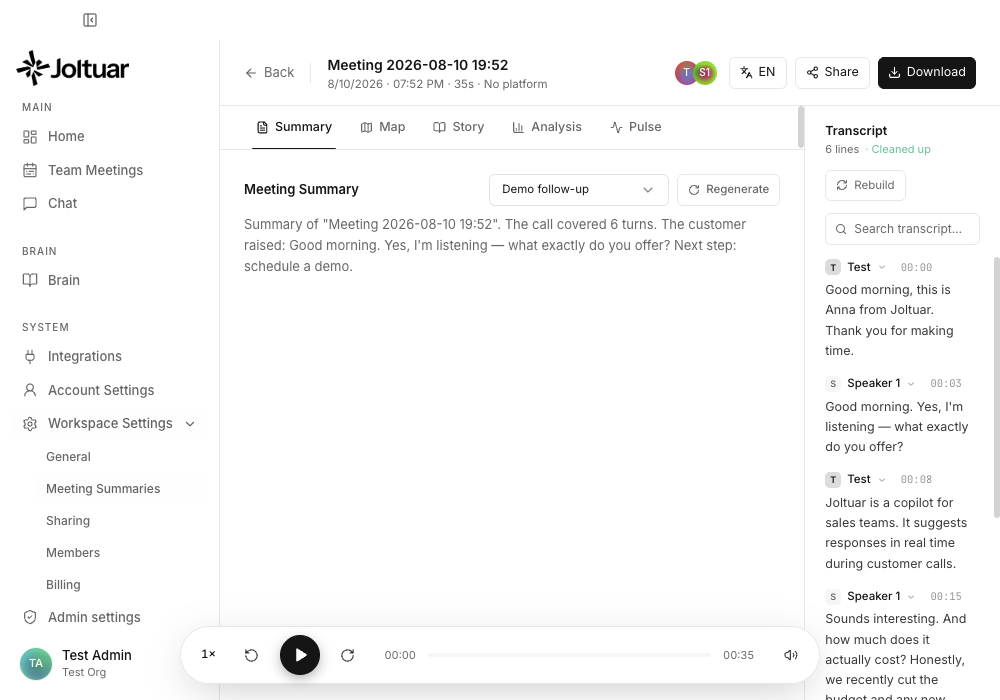
(#141)
The web dashboard matches the desktop
The web app now opens on the same dashboard as the desktop app — your upcoming meetings, recent calls and the ask box — with the extension launcher right there. The sidebar's Add to meeting opens the create-meeting drawer, and settings that previously only took effect on desktop (conversation language, your custom formatting instructions for hints, Map and Story, advisory frequency) now apply to browser calls too. Where something genuinely needs the desktop app — like connecting a calendar — the web now says so instead of silently doing nothing. (#141)
Workspace admins can set the default AI model
Admins can now choose which AI model the workspace uses by default, and the built-in default moved to a faster, more reliable model. If a previously selected model is no longer available, Joltuar quietly falls back to the default instead of failing. (#140)
The in-call overlay: resize it, and let it manage itself
The overlay on Google Meet, Zoom and Teams calls can now be resized (width and height, remembered between calls), a new auto-capture toggle starts capturing as soon as you join a meeting, and the overlay closes itself when the call ends. Under the hood the overlay also reliably connects to your workspace now — the stage picker, Map and knowledge-base badge no longer come up empty after installing or updating the extension. (#138, #140)
Sign-in pages look like Joltuar now
The browser pages you pass through when signing in with Google or Microsoft — and the "calendar connected" confirmation pages — now match the app's login screen, in light and dark mode, instead of three different one-off styles. (#137)
Duplicate calendar meetings cleaned up
If your upcoming list showed the same calendar meeting twice, that's fixed — existing duplicates are cleaned up automatically and imports no longer create them.
The meeting bot now introduces itself with your name
When you send the meeting bot into a call, it no longer joins as a generic "Joltuar Assistant" — participants now see "[your name] notetaker" (for example, "Jan Kowalski notetaker") in the meeting roster. The name comes from the display name you set when launching the bot, or from your account name otherwise, so customers immediately know whose assistant just joined. (#142)
Your meeting summaries now follow you to the web
The AI summary generated after a call on the desktop app now shows up in the web app too — open the meeting from your Recent list in the browser and the same recap is right there in the Summary tab, on every device you use. Previously summaries lived only on the computer that generated them. (#139)
Deleting a meeting now deletes it everywhere
Meetings are now kept in one place for real: delete a meeting in the web app and it disappears from your desktop app as well (recording included); delete it on the desktop and it's gone from the web too. Previously a meeting deleted on the desktop quietly came back after a while — that's fixed. (#139)
The desktop meetings list always shows the current state
Opening Meetings on the desktop now checks with your workspace first, so meetings created or rescheduled from the web app or the Assistant appear immediately — no more waiting for a background refresh. Opening a meeting that was recorded in the browser also pulls in any transcript it gained since you last looked. Offline? Everything keeps working from your local copy. (#139)
v0.20.1 — 2026-07-09
Open a past meeting's recap on the web
On the web app, clicking a meeting in your Recent list now opens its full recap — the summary, the transcript, and the Map / Story / Analysis / Pulse tabs — exactly like the desktop app. Before, clicking a past meeting did nothing. Opening a meeting from the Assistant chat takes you straight to that meeting too, and Back returns you to wherever you came from. (#124)
Filter your Recent meetings by whether Joltuar was there
Your Recent list mixes calls that Joltuar actually recorded with calendar meetings that were never run through it. A new With Joltuar / Without Joltuar filter — on both web and desktop — lets you narrow the list to just the meetings that have a real recording and transcript. (#124)
"All meetings" comes to the desktop — and gains an owner filter
Owners and admins now get the org-wide All meetings view on the desktop app too (previously web-only), showing every workspace member's meetings with an Owner column. And across both web and desktop, a new Owner filter lets you pick one or several teammates and see only their meetings. (#124, #125)
v0.20.0 — 2026-07-09
Accept a workspace invitation right in your browser
Being invited to a workspace no longer pushes you into the desktop app first. The invitation email now opens a page where you can Continue in browser: create your account — with email and password, Google, or now Microsoft — and your invitation is accepted automatically, dropping you straight into the workspace with your email already filled in. Prefer the desktop app? Open in desktop app is still one click away, and if you open that link before signing in, you now see who invited you and to which workspace, instead of a blank sign-in form. Microsoft login is also available in the web app now, alongside Google. (#123)
A simpler Brain: Stages, and one home for each kind of knowledge
The Brain view is reorganized around three clear groups — Stages, Sales knowledge, and Product knowledge — and the separate "Playbooks" section and the manual document-type switch are gone. You no longer choose how a document is used: where you file it decides. Sales knowledge is fed into your live hints as "how to sell" guidance, while Product knowledge stays a searchable base of facts. What used to be called a "Meeting type" is now a Stage everywhere — when you create a meeting, in the live-assist pill (Set stage), and in the meetings filter. Your existing documents are moved into the new model automatically. (#121)
A cleaner window on macOS
On macOS, the desktop app's main window gets a smooth, understated top bar: no title text, no divider line, and the native window buttons blended into the app with a sidebar collapse toggle right beside them. The window buttons also stay visible (greyed out) when the window loses focus — previously they could vanish against a light background. (#122)
Google Meet transcription no longer drops on long calls
On longer Google Meet calls, live transcription could stop after roughly half an hour and never recover for the rest of the meeting. It now reconnects on its own and keeps transcribing however long the call runs. (#119)
The "End meeting" confirmation in the overlay is reachable again
Clicking End meeting in the in-call overlay could draw the confirmation behind the panel, making the app look frozen. The confirmation now appears on top, where you can actually act on it. (#119)
v0.19.0 — 2026-07-07
Your meetings stay yours — plus an "All meetings" view for admins
For regular team members, meetings are now private to the person who ran them. The Meetings screen shows only your own calls, and teammates can no longer open, edit, or search through each other's meetings or transcripts — this also applies to the Assistant chat. Workspace owners and admins get a new All meetings entry in the left sidebar (web app): a full list of every meeting in the workspace, with an Owner column showing who ran each call. Regular team members don't see that entry at all — and the server enforces the same rules, so this isn't just hidden buttons.
No more duplicate meetings in your list
The same calendar meeting could show up in your Meetings list several times — once for every computer or team member that imported it — and after a cancellation only one of the copies was struck through while the rest kept looking active. Each calendar event now appears exactly once per workspace, existing duplicates are cleaned up automatically, and a cancelled meeting shows a single crossed-out entry. When a meeting gets recorded, its leftover "upcoming" placeholder is replaced by the recording instead of lingering in the list. (#115)
Meetings without a type now get full live assist (default mode)
You no longer need to pick a meeting type to get real support during a call. Start any meeting without a type — scheduled or ad-hoc, on desktop, in the browser, or in the extension overlay — and Joltuar runs as a general meeting assistant:
- The Map builds itself. Instead of a fixed template (or, on desktop, no Map at all), the assistant listens to the conversation and creates Map sections on the fly — "Project scope", "Budget", "Decisions", "Action items" — whatever the call is actually about, with live coverage colors like on any typed meeting.
- Hints adapt to the conversation. The assistant first figures out what kind of conversation you're in. If it's clearly a sales call, it supports you like a sales advisor grounded in your knowledge base; otherwise it acts as a neutral meeting assistant — answers, facts, agreements, next steps. Your sales Playbook is not injected on untyped meetings.
- Pulse captures more than sales moments. On untyped meetings the live feed also surfaces decisions, action items, deadlines and questions — not just buying signals and objections.
Picking a meeting type at any point (before or during the call) switches everything back to that type's sections and the full sales coaching, exactly as before. In the "New meeting" drawer the no-type option now reads "None — general assistant (default)" so it's clear what you get.
Participant avatars show initials
The participant bubbles at the top of a finished meeting now always show the person's initials. Previously, attendees whose calendar invite carried only an e-mail address (no display name) appeared as blank colored circles — now their initials are derived from the e-mail address itself (e.g. jan.kowalski@… → JK), and the hover card shows the address in place of the missing name. The same fix applies to the attendee list in the Meetings table. (#114)
Renaming a speaker fixes the whole transcript at once
When you correct a speaker's name in the transcript of a finished call, your pick now applies to every line spoken by that voice — not just the single line you clicked. Renaming only one line is still available in the small sub-menu that appears when you hover over a name in the picker. (#114)
Copy an invitation link straight from the Members view (#112)
Invitation email stuck in a spam filter? Every pending invitation in Workspace Settings → Members now has a Copy invite link button — copy the link and send it to your teammate over chat or any other channel. It's the exact same link the invitation email carries, and it works both in the desktop app and in the browser.
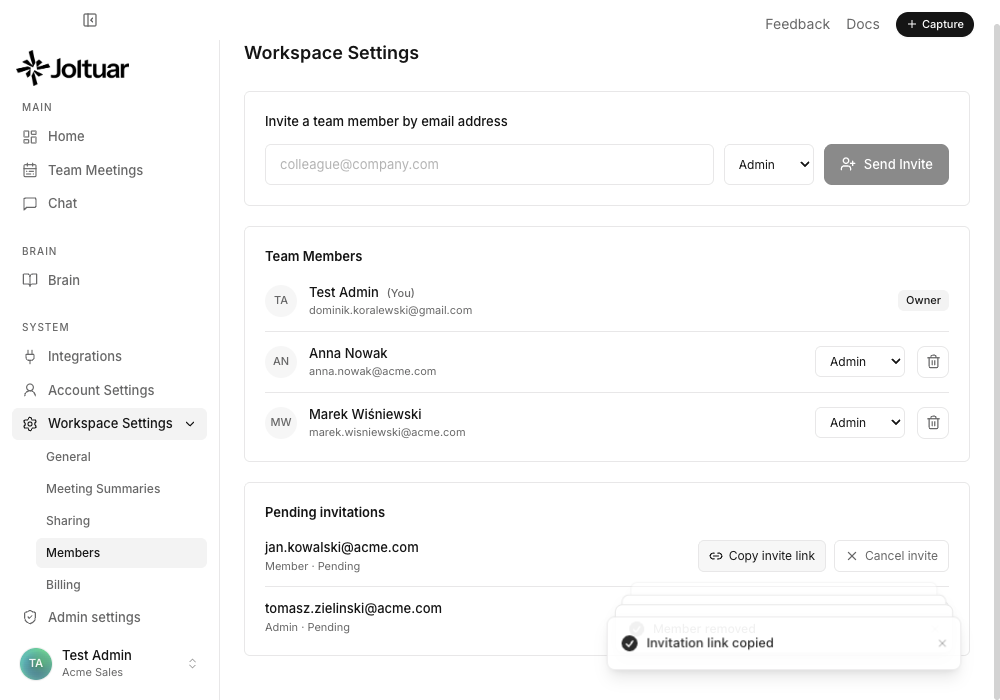
See the guide: Managing your workspace and members
Organization invitation emails now have a working link (#112)
Inviting a teammate to your workspace sends them an email — but the "Accept invitation" link in it didn't work in Gmail, Outlook and most other mail apps, so invitees had no way to join. The email now contains a regular web link that opens a "You're invited" page, and from there one click hands the invitation off to the Joltuar app to accept. Invitees who don't have Joltuar yet get a download link on the same page.
Recent meetings now show newest first
The Recent tab on the Meetings screen now lists your latest meetings at the top. Previously the list started with your oldest meetings, so after a while your most recent calls ended up buried at the bottom. (#111)
v0.18.0 — 2026-07-03
Real participant names in Microsoft Teams transcripts
When you run a Teams meeting in Chrome with the Joltuar extension, your transcript now shows each speaker's real name — pulled live from the meeting — instead of a generic "Customer" or "Speaker 1", exactly the way it already works on Google Meet. It follows whoever is speaking on the meeting stage, and falls back to Teams live captions when only a shared screen is visible. This also fixes Teams meetings opened on the new teams.cloud.microsoft address, so capture keeps working after Microsoft's move to that domain. (#102)
Send a notetaker bot to a meeting
For any meeting with a link, you can now send a Joltuar bot that joins the call itself — useful when you're on the native Teams or Zoom app and can't use the browser extension. A live status shows exactly where the bot is: joining, waiting in the lobby (with a reminder to have the organiser admit it), in the call, or finished. Once the bot is in the call you can start live assist with it as the transcript source, so you get the same real-time hints — with real speaker names — without capturing your own audio. You can also flip on "send the bot automatically" when creating a meeting, and Joltuar will dispatch it at the scheduled start time (after your recording-consent check). (#102)
Admins can pin the AI model behind each task
Workspace admins get a new AI models per task card in Settings → Admin. It lets you choose exactly which AI model powers each part of Joltuar — live hints, the map, the story, post-call summaries, and more — for everyone in the workspace, or leave any task on Auto. When you set a model for a task, that choice wins over each person's own preference: in their account settings that task shows as locked with a "Managed by administrator" badge, so your whole team runs on the models you picked. (#106)
Reliable summaries on long calls
Post-call summaries could quietly fail on longer conversations (roughly an hour or more) and show only a generic "Couldn't generate the summary" message. That's fixed — summaries now generate reliably no matter how long the call ran. And if generation ever genuinely fails, you'll now see a clear error with a Try again button instead of an empty result. (#106)
Auto-update no longer gets stuck on "Preparing the update…"
Previously, if you kept the app running after an update was ready (e.g. overnight), the periodic re-check could freeze the update toast on a spinner until the app was restarted. The update now always becomes installable again and shows the Restart button. (#104)
Comfortable layouts in narrow windows
Made the app hold up better when you shrink its window. The Meetings list no longer crushes the "When" column into a four-line stack — dates stay on a single line, and the table scrolls sideways if it runs out of room. In the post-call view, the transcript's search box now stays neatly inside its panel instead of slipping off the right edge. (#105)
v0.17.1 — 2026-07-02
See who was on the call
Open any meeting and the people who attended now show up as small avatars right next to the meeting title. Hover over anyone to see who they are — their name and e-mail address, with the address ready to click when you want to write to them. If the meeting had more attendees than fit in the row, a +N chip lists everyone else. (#103)
Fix speaker names in the transcript
Transcripts of finished calls sometimes label a voice generically — "Speaker 1" instead of the actual person. In the desktop app you can now fix that inline: hover over a speaker's name in the transcript, click it, and pick the right person from the meeting's attendees — or type a brand-new name and add them on the spot. Apply the change to just that one line, or to every line spoken by that voice. Your corrections are saved with the meeting and are still there when you come back. Renaming your own lines updates your display name across the app, and the whole flow works with the keyboard too. (#103)
v0.17.0 — 2026-07-02
A fresh look: new Joltuar logo and sign-in screens
Joltuar has a new logo — a spark. You'll see it across the whole product: in the sidebar (the full logotype when the sidebar is expanded, the spark alone when it's collapsed, in both light and dark mode), as the desktop app icon in your Dock, in the macOS menu bar, in the Chrome extension and on this documentation site. (#101)
The sign-in and sign-up screens got a matching refresh: a clean, centered layout with the new logo on top, Google sign-in first, and a show/hide toggle on the password field. Signing in works exactly as before. (#101)
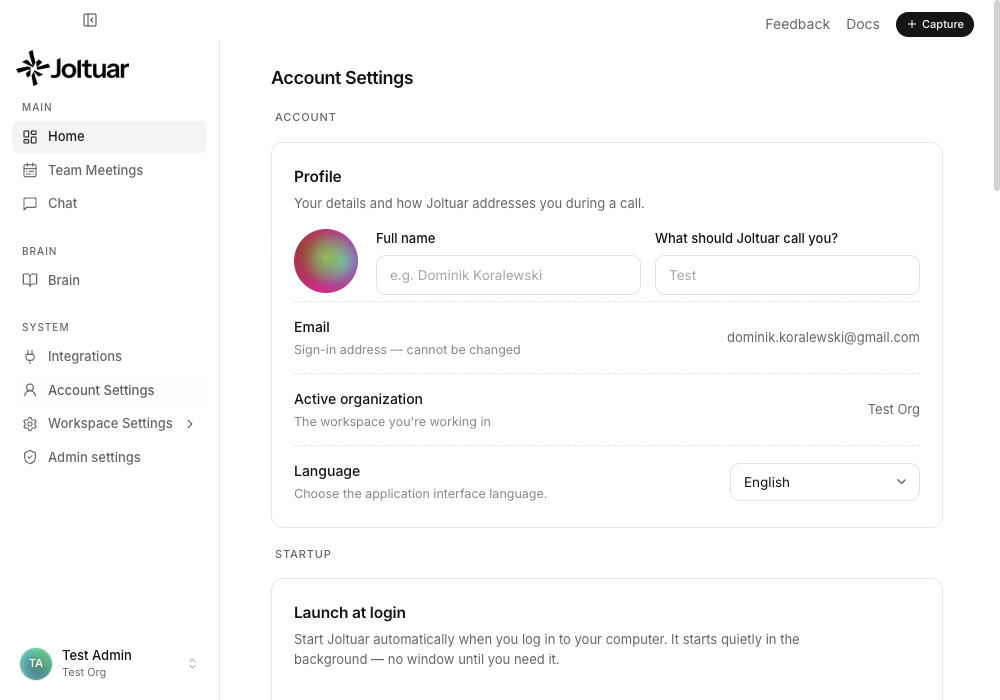
Chat with your meetings and playbook (Assistant)
The web app has a new Assistant in the sidebar — a chat that can actually read and work with your data. Ask things like "what objections came up in my calls last week?", "summarize my upcoming meeting with Acme", or "what does my playbook say about pricing?" and it pulls the answer from your real meetings, transcripts, and Brain — not guesswork. It can also help you manage things: schedule a meeting, add an agenda, draft a new Brain section, or clean up old meetings. Anything that deletes or publishes always asks you to confirm first, and the Assistant can never publish a playbook on its own (you stay in control of what coaches your live calls). Pick which AI model answers from the box next to the message field, and find your past conversations in the Recents list on the left — your chat history follows you across the web app and desktop.
Connect Joltuar to Claude Desktop, Cursor, and other AI tools (MCP)
Joltuar now speaks MCP (Model Context Protocol), so you can connect your meetings and playbook to external AI clients like Claude Desktop or Cursor. In Integrations → MCP access, create a token (read-only or read-write), follow the built-in connection guide to paste it into your client's config, and that tool can now query your Joltuar data securely. Tokens are scoped to your organization, shown only once, and you can revoke them anytime.
Sharper post-call summaries — and your own summary templates
Post-call summaries got a serious quality pass: seller and customer names no longer get mixed up, deadlines reflect the latest thing actually agreed on the call (quoted verbatim, including spelled-out times), and the summary no longer invents next steps that never happened. Next steps now come as a clear list — who does what, by when. You can also shape summaries yourself: the new Workspace → Meeting Summaries tab lets you create instruction templates, mark one as the default applied to every meeting, and regenerate any meeting's summary with a chosen template using the picker next to Regenerate. See the Meeting Summaries guide. (#98)
Manage your workspace and its members
Workspace settings are now fully functional: rename your workspace in Workspace → General, and manage your team in Workspace → Members — invite people by e-mail with a role, promote or demote admins, remove members (with a confirmation step), and see and cancel pending invitations. Owners and your own account are protected from accidental changes, and regular members get a read-only view. Works identically in the web app and the desktop app. See the Workspace & Members guide. (#97)
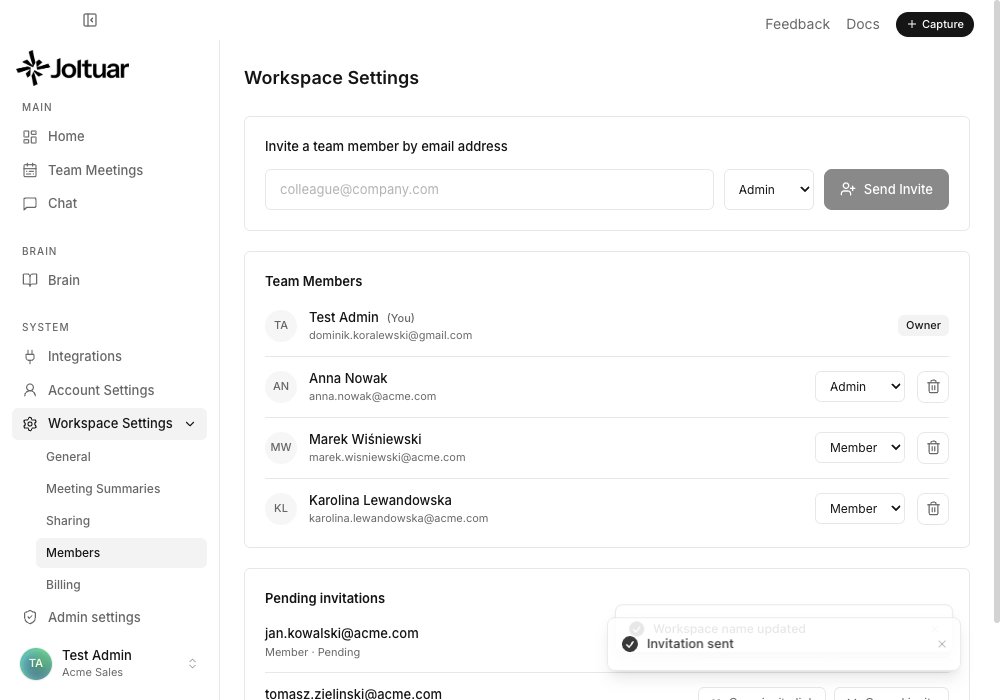
Loudspeakers without double transcripts
If you take calls on speakers, the other side's voice used to leak into your microphone and show up in the transcript twice — once as them, once mislabeled as you. On macOS the desktop app now uses the operating system's own echo cancellation on the microphone, removing that leak at the source. On top of that, a smarter echo filter recognizes when a duplicated line overlaps the original in the audio timeline and drops it — in the desktop app and in browser calls through the Chrome extension (Zoom, Teams). Headphones still give the cleanest results, but loudspeakers are now a first-class option. (#99)
v0.16.0 — 2026-06-30
This release brings Joltuar to Microsoft: sign in with your Microsoft account and pull your Outlook calendar straight into Meetings — exactly the way Google Calendar already works. It also makes your call transcripts noticeably cleaner and easier to read, and gives the Meetings list real sorting and filtering. (#33, #95, #94, #93)
Sign in with Microsoft and connect your Outlook calendar
You can now sign in to Joltuar with a Microsoft account, right next to "Continue with Google". Once you're in, connect your Outlook calendar and your upcoming meetings flow into the Meetings section just like Google Calendar — imported, kept in sync in the background, and ready to start with one click. The Integrations card shows an auto-sync toggle and a "Sync now" button instead of a static list, you can connect Google and Outlook at the same time, and Microsoft sign-in now shows an account picker. (#33, #95)
Clearer, better-labelled transcripts
Lines from the same person are merged into one block instead of being split across several fragments, and speakers are labelled with actual names — your own preferred name, the name from the calendar invite or meeting, or "Speaker 1/2" — instead of generic "Seller" and "Customer". A new Settings field, "What should Joltuar call you?", lets you set how you appear, and it syncs across your devices. (#94)
Automatic post-call transcript cleanup
When you open a completed meeting, Joltuar now tidies up its transcript automatically — fixing the small transcription glitches that creep in during a live call — so the version you read back and export is cleaner, without changing what was actually said. (#94)
Fewer duplicate lines on speakers
If you run a call on your laptop speakers instead of headphones, the same sentence sometimes got picked up twice and transcribed twice. Joltuar now detects and drops those near-duplicate echoes, so the transcript reads cleanly. (#94)
Sort and filter your upcoming meetings
The Meetings → Upcoming tab now has controls to sort (soonest first, latest first, name A–Z, recently added) and filter by date range, type, platform, and language, with a "Reset filters" link. Planned meetings whose day has already passed move to Recent instead of cluttering Upcoming — you can still start or delete them there, so nothing gets lost. (#93)
v0.15.0 — 2026-06-29
A top-to-bottom reliability and polish pass: Joltuar now recovers on its own when audio or the network hiccups, tells you clearly when something's wrong instead of failing quietly, gives you control over call recordings, and tidies up a few rough edges around the assist window and settings. (#92)
Audio and transcription recover on their own
If your microphone drops mid-call (a Bluetooth headset disconnects, you switch devices) or the system-audio capture crashes, Joltuar now detects it and restarts capture automatically instead of going silent. When transcription disconnects or your managed credits run out, the assist window shows a clear status banner — "reconnecting…" or "out of credits" — so you're never left wondering why hints stopped. (#92)
Clearer "out of credits" and degraded states
When a hint can't be generated because you're out of managed credits, you now see a plain "out of credits — top up" message on the hint and on Pulse — in the desktop app and the browser surfaces — instead of a raw error. The Google Meet overlay now also shows the knowledge-base grounding badge, so you can tell at a glance whether a suggestion is backed by your knowledge base. (#92)
You decide whether calls are recorded
Recording the full call audio (used for post-call playback and WAV export) is now a setting you control, with a clear note about where recordings are stored and how much space they use. Recordings stay only on your machine, are deleted automatically after 30 days, and are removed when you delete the meeting. (#92)
Permission preflight and a safer "End meeting"
On macOS, Joltuar now checks for Screen Recording permission at the start of a call (customer audio needs it) and takes you straight to the setting if it's missing. The assist window's Stop button now asks for confirmation before ending a meeting, and the paused state is clearly shown. (#92)
Survives a connection blip at launch
If Joltuar can't reach the backend the moment you open it (flaky Wi-Fi, a VPN still catching up), it no longer drops you to the login screen despite a valid session — it shows a quiet "offline — retrying" state, keeps your meetings and knowledge base in view, and reconnects on its own (or with a tap), including when your laptop wakes from sleep. (#92)
Settings and prices, cleaned up
Model prices in Settings now show real numbers (e.g. "$3.00/1M tokens") and can be sorted by cost or by context length. Editing a meeting's knowledge in the Meetings section no longer saves on every keystroke — it saves once you pause, which keeps typing smooth. (#92)
The old floating window is gone
The legacy always-on-top "floating" window has been removed. Live assist runs in the Compact Prompter, and the extra floating panel no longer pops up on its own (for example after connecting Google Calendar). (#92)
Snappier, steadier hints under the hood
The first hint of a call no longer stalls while a model warms up, the assist window no longer stutters as a hint streams in, and stalled AI calls now time out and recover instead of freezing the session. (#92)
v0.14.4 — 2026-06-24
Pulse suggestions are now easier to scan, one point at a time (#87)
When you expand a Pulse signal during a call, the suggested talk-track is now laid out as bullet points — one sentence per bullet — instead of a single block of text. The key moves stand out at a glance, so you can act on a suggestion mid-conversation without re-reading a paragraph. It applies everywhere Pulse runs: the desktop app, the in-meeting browser overlay, and the web app.
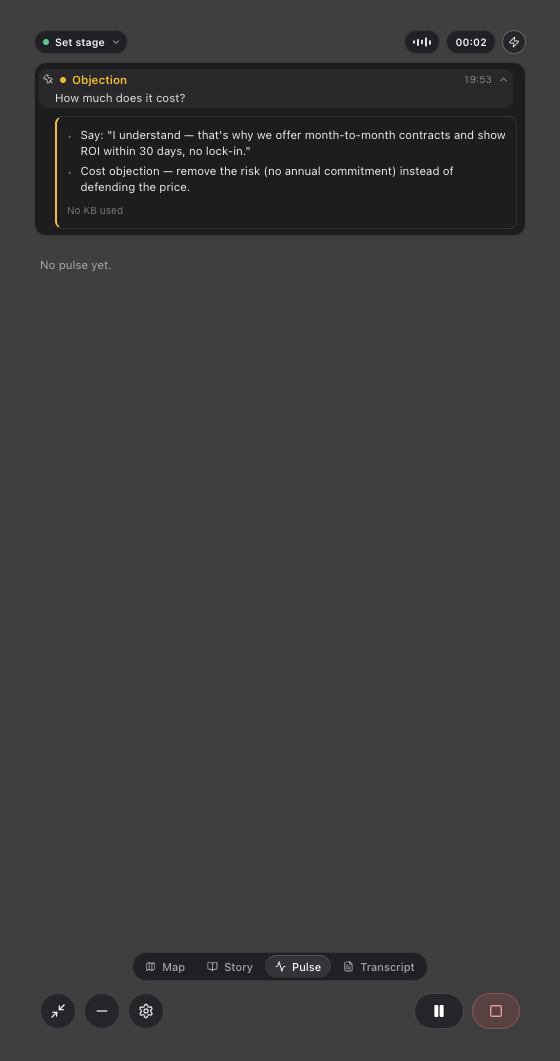
See the guide: Working with Pulse signals
The Chrome extension tells you when it needs updating
The Joltuar browser extension now keeps itself current. Open the extension popup to see your installed version, check for updates, and update on the spot; when a newer version is available an "update available" toast also appears in your in-call overlay. If your extension ever becomes too old to work correctly with Joltuar, it asks you to update before you start a meeting — surfaced in the popup and on the in-call badge — so you're never stuck on a broken version. Once Joltuar is in the Chrome Web Store these updates install automatically in the background. (#89)
Joltuar stays visible after live assist (#86)
On macOS, running a live assist session no longer makes Joltuar disappear from the Dock and the menu bar. Previously, once you finished assisting and went back to the main view, the app looked closed — it was still running, but the Dock icon and the top menu bar were gone until you quit and relaunched it. Now they stay put. And while a session is running, picking Show Main Window from the Joltuar icon in the menu bar now actually brings the main window back up.
See at a glance which Map topics are covered
Every section in the live Map now carries a colored coverage dot — green, orange or red — that the assistant judges against that section's prompts. Green means the section is fully covered and you can move on, orange means it's been touched but something is still missing, and red means it hasn't really been discussed yet. The same status shows in your browser meeting overlay and in the post-call meeting summary, where it replaces the old "count the bullet points" rule with a real read on whether the section's questions were actually answered — so a section with a few vague notes no longer looks "done" when it isn't.
(Note: the coverage dots were removed from the live Map panel in v0.25.0 — see above.)
v0.14.3 — 2026-06-24
Live assist now works directly in your browser meeting
The Joltuar Chrome extension can now run the full live assistant as an overlay inside Google Meet, Zoom or Microsoft Teams in the browser — no desktop app window needed. Click the Joltuar icon on your meeting tab, hit Start assist on this tab, confirm recording consent, and the Map / Story / Pulse / Transcript panels appear right on top of the meeting. On Google Meet the transcript labels each line with the participant's real name. Sign in once on app.joltuar.com and the extension uses your account automatically.
See the guide: Live assist in the browser
Teach Joltuar the names it should always get right
Your calls are full of product names, company names and competitors that generic speech-to-text often mangles. Now you can give Joltuar that vocabulary up front. In Brain → Names, your team adds the names your conversations use, and Joltuar feeds them to the transcription engine so transcripts — and every hint built from them — spell them correctly. The names work in both the desktop app and browser meetings.
See the guide: Teaching Joltuar your names
v0.14.2 — 2026-06-18
Real participant names in the Google Meet transcript (#82)
For Google Meet calls, the transcript now labels each line with the participant's real name instead of a generic "Customer" — both live during the call and in the saved meeting afterwards (and in downloaded transcripts). Your own side stays the seller, and a line falls back to the generic label when a speaker can't be matched.
See the guide: Using Joltuar with Google Meet
A cleaner, on-brand Chrome extension (#82)
The extension's popup, the in-call badge on Google Meet, and the microphone-permission page now match Joltuar's look, and the extension shows the Joltuar icon instead of the default puzzle piece.
v0.14.1 — 2026-06-18
Google Meet integration now works end to end (#81)
If you run Joltuar with Google Meet through the Chrome extension, pairing and live capture now work reliably. The extension links to the desktop app in one click, the other side of the call is transcribed live, and — once you've granted microphone access — your own side is captured too. Several issues that could quietly stop pairing or capture from starting have been fixed.
See the guide: Using Joltuar with Google Meet
A clear step to grant the extension your microphone (#81)
Granting the Chrome extension access to your microphone now happens on its own page that opens in a tab, so the permission prompt reliably appears and sticks. Click Grant microphone permission in the extension popup, allow access once, and your voice is transcribed as the seller side of the call.
Joltuar reliably stays in your Dock on macOS (#81)
Joltuar could occasionally launch without an icon in the macOS Dock, which made it hard to bring the main window back. The app now always keeps its Dock icon and app-switcher entry.
v0.14.0 — 2026-06-18
AI summary, talk-time analysis and downloads in the post-call view (#78)
The post-call meeting view now does more than show the transcript. The Summary tab writes an AI recap of the call and saves it with the meeting (with a Regenerate button), and the new Analysis tab breaks down who talked how much — the listen-to-talk ratio — alongside the prompts you marked as effective or not. Download finally exports the conversation for real: the transcript as PDF, SRT, CSV, JSON or Markdown, the summary as PDF or Markdown, and the audio as WAV. You can also rename a meeting straight from its header, and meetings that haven't happened yet show only the relevant tab.
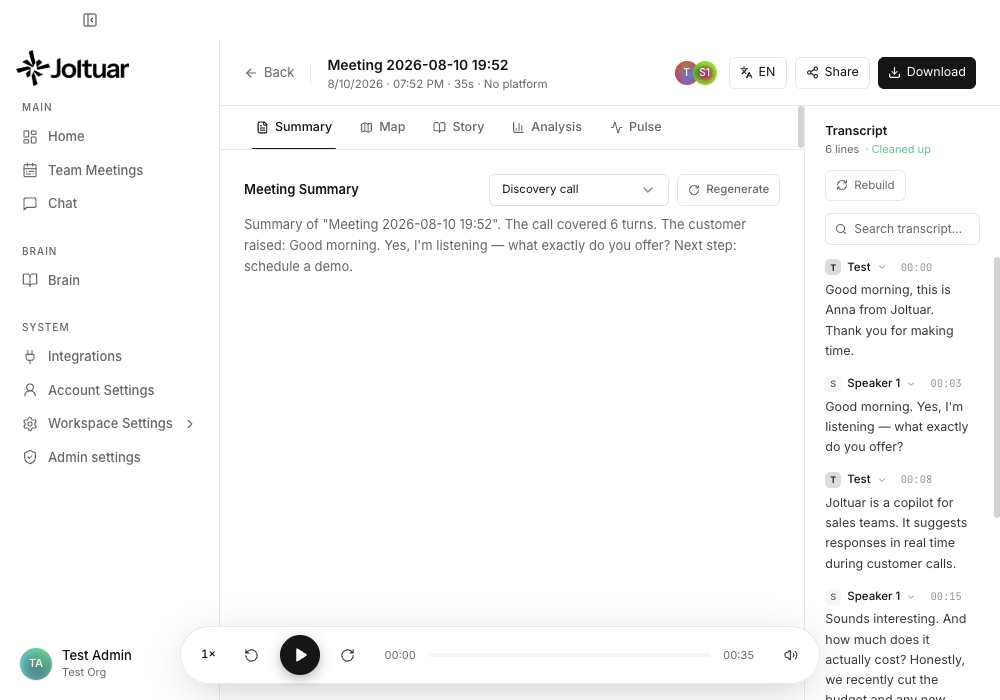
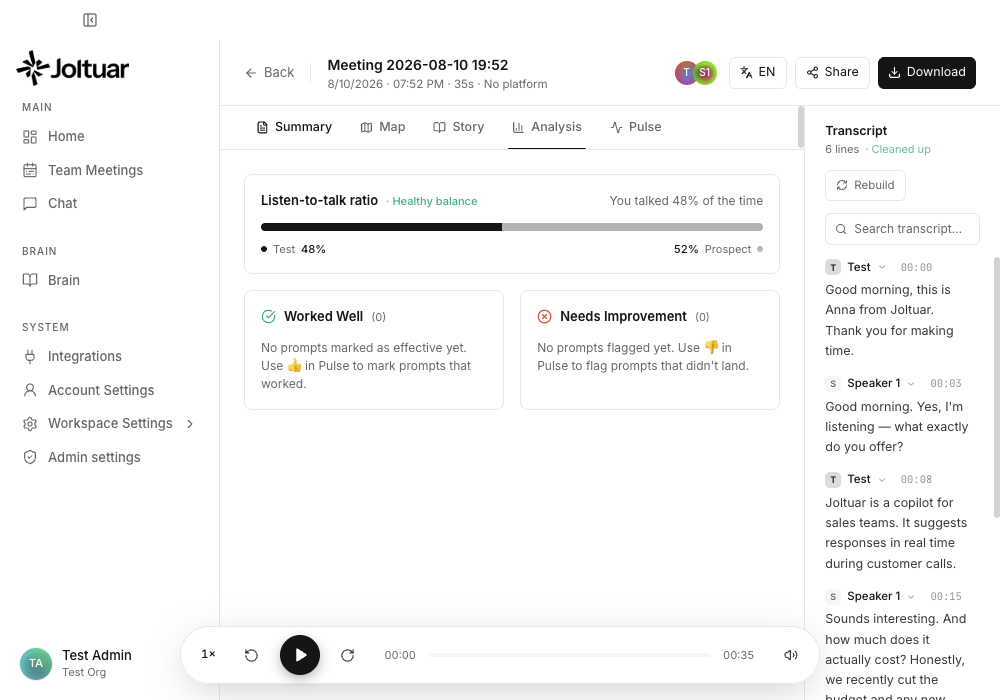
See the guide: Reviewing a meeting after the call
A redesigned "Add to meeting" setup (#79)
Setting up a meeting for the assistant now happens in a cleaner side drawer. Give the meeting a name and paste its link (Google Meet, Zoom, MS Teams, and more), pick a meeting type — these come from your Brain → Meetings signal-template sets, so the assistant tracks exactly the signals you defined — choose a language, and add any context the assistant should remember. Before the meeting is added, you confirm you have consent to record from everyone on the call.
See the guide: Adding a meeting for the assistant
Recording-consent confirmation before every call (#80)
Joltuar now asks you to confirm everyone on the call has agreed to be recorded before a session starts — whether you hit Assist now, start a specific meeting, or the assistant auto-starts a scheduled one. It's a quick, consistent checkpoint so you're always on the right side of consent. Admins can turn the prompt off per account when it isn't needed.
v0.13.1 — 2026-06-17
A richer post-call meeting view (#77)
After a call you now land on a redesigned meeting view: a header with the meeting details, content tabs (Summary, Map, Story, Pulse and more), a searchable transcript panel on the right, and an audio player to replay the recording — so you can revisit exactly what was said and what the assistant surfaced.
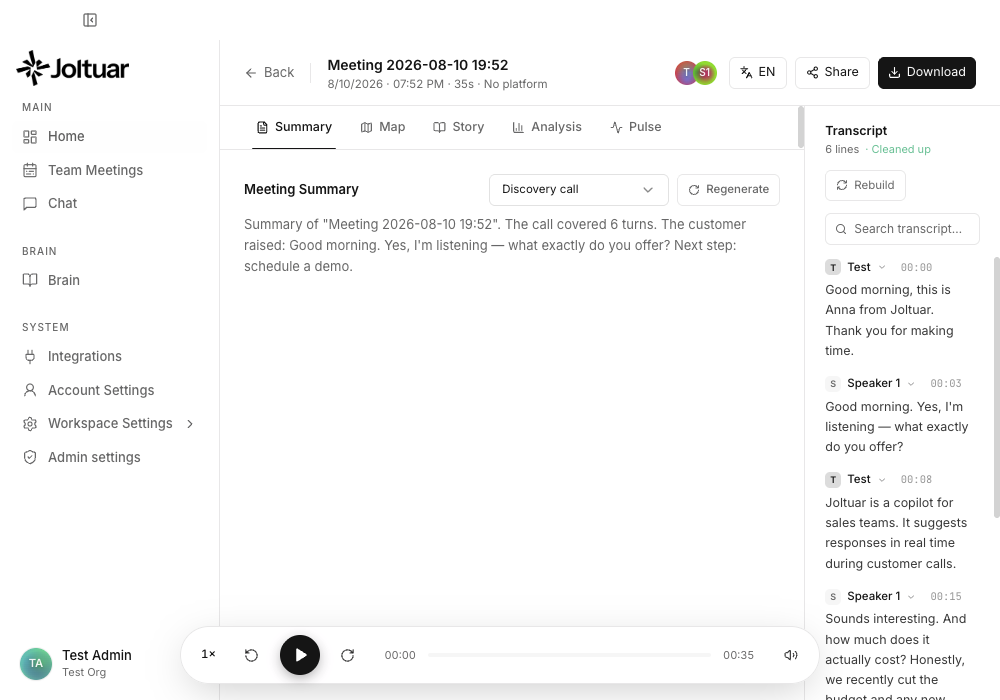
See the guide: Reviewing a meeting after the call
Switch workspaces from the sidebar (#77)
Your account now sits at the bottom-left of the sidebar. Click it to switch between workspaces, create a new one, open your Account or Workspace settings, or sign out — all in one place (previously these were split across the top bar).
See the guide: Switching workspace and account actions
v0.13.0 — 2026-06-17
Brain Playbooks: Behavioral guidance for hints
A new Playbooks document type in Brain injects behavioral guidance into hints as a guaranteed section — no competing with other knowledge for RAG ranking. Example: create an "Objection Handling" playbook that teaches the assistant to ask reversing questions; every hint will include it as coaching. Playbooks use the same draft–publish workflow as regular knowledge, so you can revise and republish without disrupting live hints.
v0.12.5 — 2026-06-16
Save confirmations in the Brain
Saving a draft, publishing or unpublishing a knowledge page now shows a brief confirmation toast in the corner, so you get clear feedback that your change went through — and a clear message if something goes wrong. The toast animates in and out, and you can dismiss it right away with its close button.
v0.12.4 — 2026-06-15
Brain, reorganized into Meetings, Sales and Product
The Brain's left menu is now grouped: a Meetings section where each meeting type is its own item (with “New meeting”), and your knowledge split into Sales knowledge and Product knowledge — so it's easier to find the right file and add a new one in the right place.
Draft and publish, under one button
Every knowledge page now has a single Save button with three actions: Save draft, Publish and Unpublish. Save a draft to keep working without changing the live version, publish when it's ready, or unpublish to take a page offline (it's kept as a draft). Only published content is used by the live assistant, so works-in-progress stay private until you publish.
Edit a published page without breaking it
When a published page also has a pending draft, it shows as two entries in the menu — one tagged Published (the live version, read-only) and an indented Draft beneath it. Edit the draft freely; publishing it replaces the live version, so you can revise a live page without anyone seeing half-finished edits.
Meetings: Map and Story
The Meetings editor is built around Map and Story tabs. Lay out what to capture as numbered items, each with its own Questions and Hints written as simple bullet lists — Map for the facts to note during the call, Story for the AI's recommendations.
Paste from Markdown
Pasting text copied from a Markdown (.md) file now formats automatically — headings, lists, bold and more come through as rich text instead of raw characters.
v0.12.3 — 2026-06-15
The signal you're reading stays put
Expanding a Pulse signal now pins it to the top of the assist window — new signals no longer push it away mid-read. The newest signal shows as a collapsed row just below the pinned card (on the Map, Story and Transcript tabs; the Pulse feed already leads with it), so you never miss a fresh moment while studying the current one. The pinned card is now marked with a pin and a raised outline, so at a glance it's obvious which card you're reading versus the newer one waiting below. If a suggestion fails to generate, tapping the card now actually retries it.
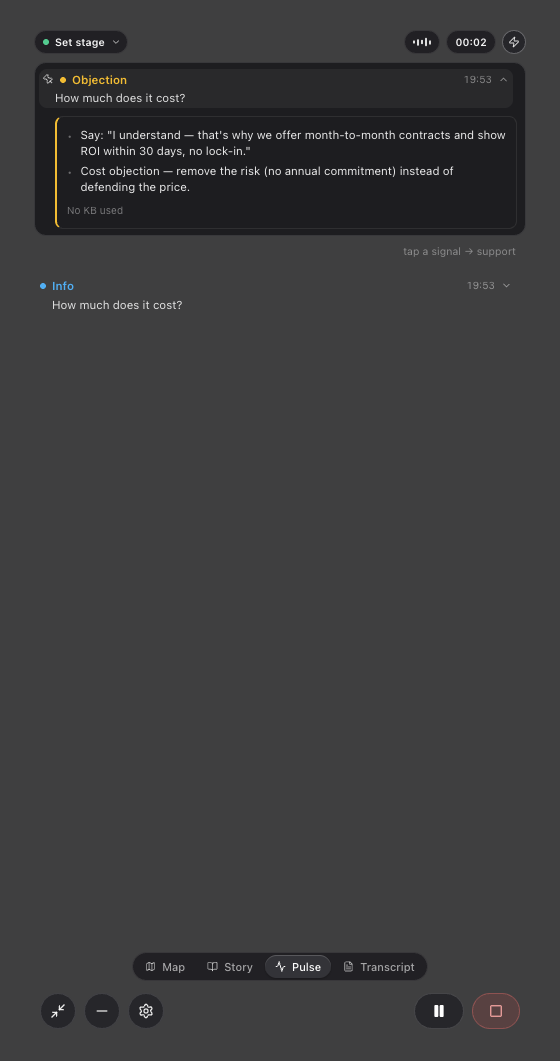
See the guide: Working with Pulse signals.
Capture the last moment on demand
A new ⚡ button in the assist window header force-captures the customer's last ~30 seconds as a Pulse signal and immediately streams its talk-track — for those moments the assistant didn't flag on its own. The button now stands out in amber so it's easy to find. If the customer hasn't said anything recently, a gentle notice tells you so. Works on every tab, and also in the Google Meet overlay and the web app.
See the guide: Working with Pulse signals.
Hints can now generate automatically
A new "Generate hints automatically" setting (Settings → Assistant, also in the in-call quick settings) streams each signal's talk-track the moment the signal appears — no tap needed. It's off by default (more AI usage when on). Pausing the assistant now also stops any talk-track that is mid-stream, and the signal stays re-generable after you resume.
See the guide: Settings.
The Map now listens to the customer only (configurable)
Map sections used to occasionally pick up things you said as if the customer had said them. A new "Map listens to" setting fixes that: by default the Map collects only the customer's speech; switch it to "Both sides" if you want your own statements captured too. Available in Settings → Assistant and in the in-call quick settings.
See the guide: Settings from a call.
v0.12.2 — 2026-06-13
Up-to-date, more secure app platform
The desktop app now runs on a current, actively patched version of its underlying browser engine (Electron 41 / Chromium 146) instead of one that had left the security-support window. You get over a year of accumulated Chromium and Node.js security fixes under the hood — nothing changes in how the app looks or works.
A much smaller, cleaner app download
The macOS app package is now less than half its previous size (roughly 390 MB unpacked instead of 900 MB), so downloads and updates finish noticeably faster. The installer also no longer carries any of the development files that were accidentally bundled before — only the code the app actually runs ships to your machine.
Extension download on the docs site stays up to date
The Chrome extension ZIP published at docs.joltuar.app/downloads and the documentation site itself are now rebuilt and republished automatically with every release of changes, so the "Download extension" button always serves the latest version instead of a stale build.
v0.12.0 — 2026-06-12
Credits: see your real usage and top up with a card
The Billing tab in Workspace settings is now real. It shows your organization's credits balance (1 credit = $0.01), lets you top up with a card via Stripe ($10 / $25 / $50 / $100 packages) and lists the full transaction history — purchases, welcome credits, manual grants and corrections. Credits appear within a minute of payment. Works the same in the desktop app and in the browser.
Plan & usage: credits balance and an LLM / transcription split
The "Plan & usage" tab now shows your current credits balance at the top and splits this month's usage into LLM (tokens) and transcription (minutes), each with the amount actually charged to your balance — so the numbers finally include speech-to-text, not just the AI models.
Welcome credits and a clear out-of-credits state
New accounts start with welcome credits (default $5) and existing organizations receive the same one-time grant, so nobody is locked out on day one. When an organization runs out of credits, new hints and transcription stop with a clear "Out of credits — top up" message instead of failing silently; anything already in progress finishes normally.
Admins: grant credits by hand
The Admin tab gained a "Credits (admin)" panel: pick any organization, see its balance, add or subtract credits with a reason (every change lands in the audit ledger) and recompute the balance if it ever drifts. Available in the desktop app and in the browser.
Google Meet works out of the box — zero configuration
The Chrome extension now pairs with the desktop app in one click: the first time it connects, the app shows a "Connect the Chrome extension?" dialog — click Allow and you are done. No ports, no tokens to copy, and no separate sign-in inside the extension: transcription credentials flow from the app automatically. Settings → Audio & transcription shows the live status (paired, in a meeting, capturing) and a "Revoke pairing" button. Until the Chrome Web Store listing is live, grab the extension from docs.joltuar.app/downloads/joltuar-extension.zip — the download button with install steps also lives in Settings → Audio & transcription.
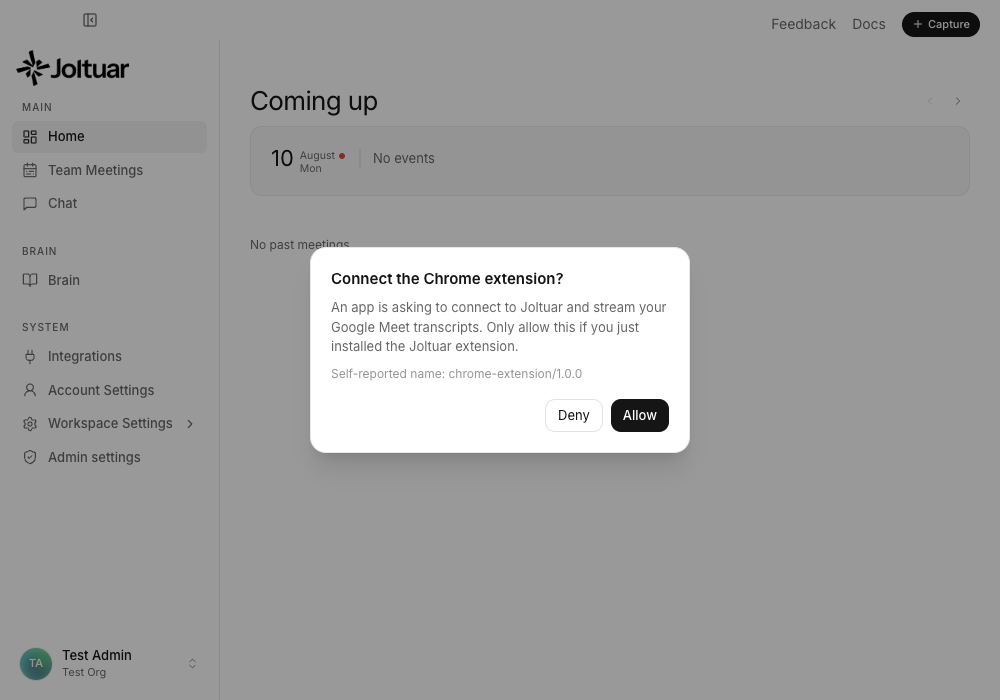
Assist picks the right audio source by itself
When you start assist while the extension sits in a Google Meet call, the app automatically uses the meeting as its transcription source — attaching to a running capture, or starting one remotely after you confirm the per-meeting transcription consent. No Meet around? Local audio capture starts exactly as before. If the extension does not respond within a few seconds, the session falls back to local audio on its own and tells you with a banner.
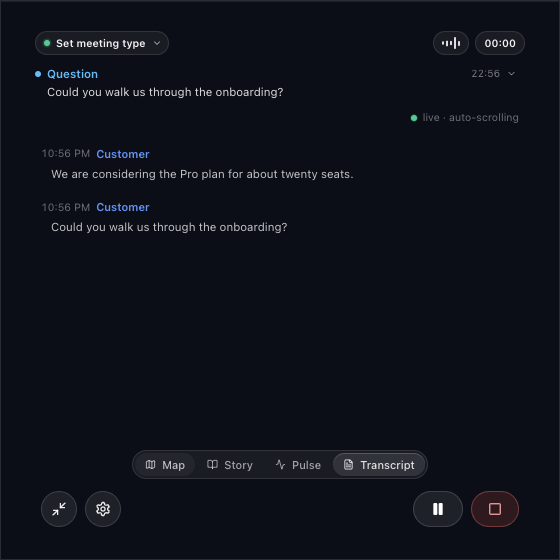
Switch the audio source mid-call
The assist window's quick settings gained an "Audio source" switch: flip between "Meet — extension" and "Local audio" at any moment without ending the session — the transcript and hints continue uninterrupted.
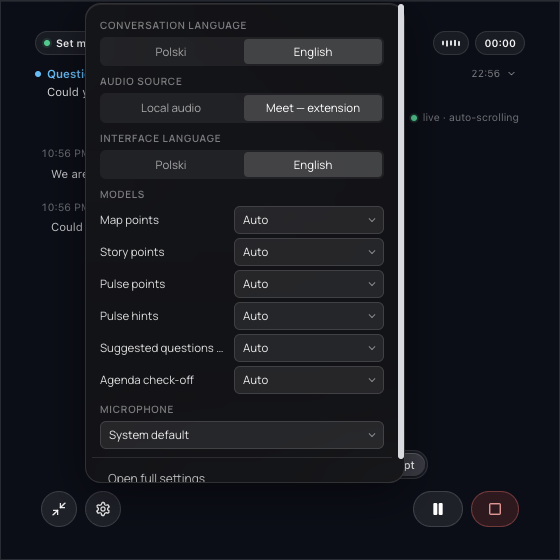
See the guide: Using Joltuar with Google Meet
Story recommendations are ~4× faster and better grounded
Story (advisory) recommendations now arrive in about 1.5 seconds instead of ~6 — fast enough to land while the topic is still being discussed. They also follow the conversation more closely: the assistant reacts to what the customer is asking right now, and offer parameters (prices, discount thresholds, SLA, certificates) are taken strictly from your knowledge base, so invented numbers are largely gone. Under the hood the default model for this task changed (you can still pin any model per task in Settings).
More accurate Pulse labels and Map sections
Pulse items are labeled more accurately — customer questions show up as Question and pain points as Pain even when the keyword pre-classifier guesses wrong, and malformed model replies no longer lose their label. Map points land in the right sections (pricing and discounts go to a budget section instead of "problems"), existing points get enriched instead of duplicated, and points always follow the conversation language. All three surfaces now answer deterministically — the same conversation produces the same notes, instead of varying run to run.
Hints now remember the whole meeting, not just the last minute
When you ask for a talk-track on a Pulse moment, the AI now also sees the facts collected on your Map throughout the meeting — the customer's pain points, current setup, budget and team size from twenty minutes ago, not just the last 60 seconds of transcript. A pricing question late in the call gets an answer that respects what the customer already told you. Works in both the desktop and the web app.
More honest and better-aimed AI suggestions
Three quality fixes land together. When nothing relevant is found in your knowledge base, the AI is now explicitly forbidden from inventing "our experience shows…"-style facts — it answers from the conversation only. Knowledge-base lookups ignore filler words ("ile to w ogóle…", "what is the…") and no longer get polluted by duplicated half-sentences from live transcription, so the chunks that reach the AI match the customer's actual problem more often. Suggested questions in the Map tab are now also grounded in your knowledge base, so they reflect your product and methodology instead of being generic.
v0.11.0 — 2026-06-11
English conversations now get fully English assistance
When the conversation language is set to English, every AI surface now answers in English: the conversation Map, Story recommendations, agenda check-off reasons and suggested questions — not just hints and Pulse as before. Each AI prompt now has a native English version instead of a Polish prompt with a "respond in English" note, which makes English output noticeably more natural. Switching the language mid-meeting applies to the very next AI pass. This covers the browser (web) version too.
English interface by default
On a fresh install with no saved preference, the app interface now starts in English (Polish systems still get Polish automatically). Your saved language choice is unaffected — you can switch between English and Polish in Settings or in the assist window's quick settings at any time. The web app now also boots in your saved interface language instead of always starting in Polish.
Choose the AI model for agenda tracking
The "AI models per task" section in Settings (and the quick-settings popover in the assist window) gained an "Agenda check-off" entry — you can now pin a specific AI model for live agenda tracking, like for every other task. (Per-task model selection moved to admin-managed settings in v0.24.0.)
Quick settings right inside the assist window
The settings (gear) icon in the assist window now opens a quick-settings popover instead of pulling up the main window. Without interrupting the meeting you can switch the conversation language, the interface language, the AI model for each task (Map, Story, Pulse…) and the microphone — changes apply immediately. "Open full settings" at the bottom still takes you to the full Settings screen when you need more.
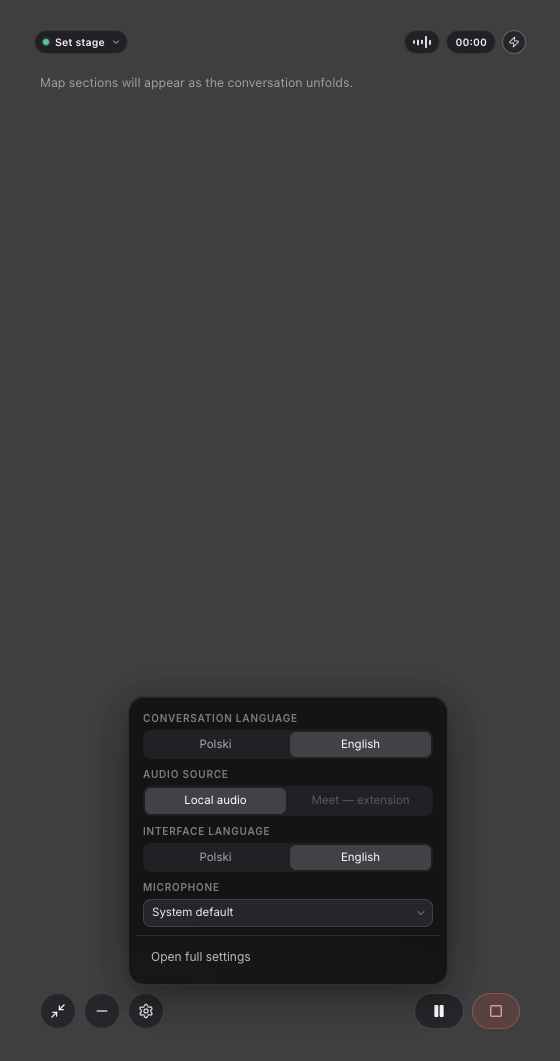
See the guide: Changing settings during a meeting
Microphone selection now works — and switches live
The microphone picked in Settings (and in the new quick-settings popover) is now actually used for capturing your voice — previously the app always used the system default regardless of the setting. Changing the microphone during a meeting takes effect right away, with under a second of pause in transcription. If the chosen device is unplugged, the app falls back to the system default instead of going silent.
More breathing room under the top bar
Screens in the main window no longer start right at the edge of the top bar (organization and account) — content now has clear spacing below it on every screen.
Online documentation
Guides and this changelog are now published at docs.joltuar.app. The site rebuilds automatically whenever the documentation changes.
Account Settings redesigned with tabs (#43)
The Account Settings screen was rebuilt. Settings are now grouped into tabs at the top — Account, Assistant, Audio & transcription, Plan & usage, Privacy and About — and a search box at the top jumps straight to the right section. Every card and control got a cleaner, refreshed look and works in both light and dark mode. AI models — including the per-task picker — now live under the "Assistant" tab.
See the guide: Account Settings in a tabbed layout
Pulse speaks one language (commit 3fec930)
Signal summaries on the Pulse tab now always follow the language selected for the conversation (Polish or English) — no more mix of Polish and English hints in a single view. Signal labels (Objection, Question, etc.) intentionally stay in English — they are fixed category markers.
v0.10.0 — 2026-06-10
Choosing AI models per task (commit 8499b75)
Account Settings gained an "AI models per task" section. You can separately choose which AI model handles Map, Story and Pulse points, Pulse hints and suggested questions in Map — or leave "Auto (default)" to let the app pick a fast model for point extraction and the global one for everything else. The global model list also gained 20 leaderboard models (commit 14ffc29).
(Per-task model selection moved to admin-managed settings in v0.24.0.)