
Appearance
Meeting notification popup
This guide shows the popup that appears shortly before a scheduled meeting — a quick way to join or open Joltuar without hunting for the meeting in the app.
Steps
1. The popup appears shortly before the meeting
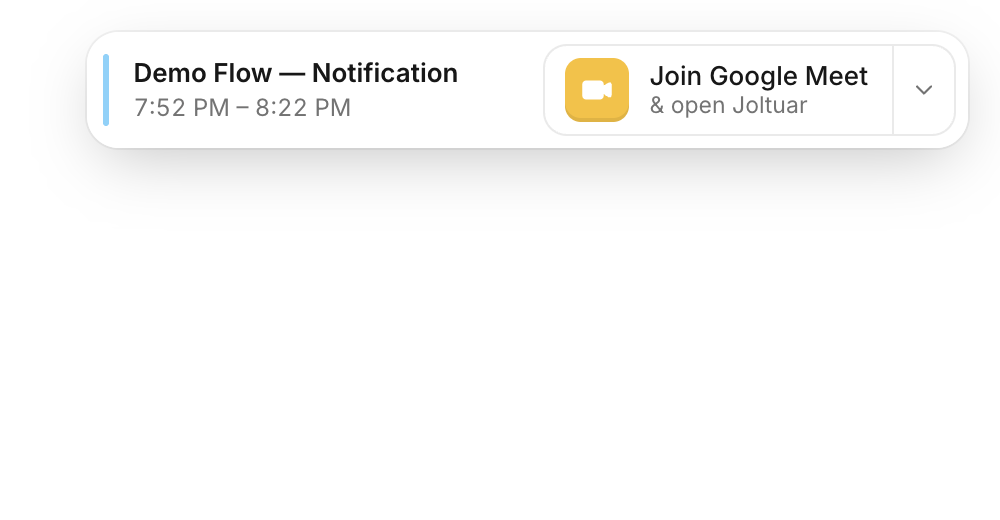
About a minute before a scheduled meeting starts, Joltuar shows a popup with the meeting title and time — no need to keep the app open and watch the clock.
2. Join with one click
The primary button joins the meeting directly (label follows the platform — Google Meet, Zoom, Teams) and opens Joltuar at the same time. Without a meeting link, it simply opens Joltuar instead.
3. Dismiss the popup
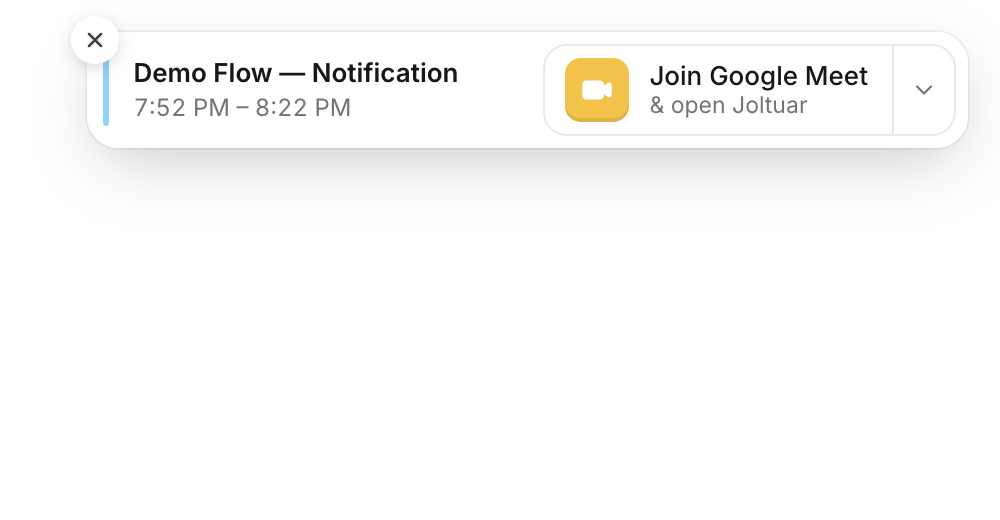
Not ready to join yet? Hover the toast and click the X — it will not resurface for this meeting.